Showing posts with label NE40E. Show all posts

Friday, October 20, 2023

Why NE40E CPU usage raise too high?

Fault description

The customer reports that the CPU usage of Huawei NE40E-X3 raise too high, which reaches 60%


Processing procedures

1. Check the CPU usage to locate which tasks are using a lot of CPU resource.


<NE40E-X3>dis cpu-usage
Cpu utilization statistics at 2019-02-22 15:10:26 916 ms
System cpu use rate is : 74%
Cpu utilization for five seconds: 72% ;  one minute: 65% ;  five minutes: 77%.
Max CPU Usage : 99%
Max CPU Usage Stat. Time : 2018-09-10 18:58:15 410 ms
---------------------------
ServiceName UseRate 
---------------------------
SYSTEM           40%
BRAS             26%
CMF               3%
FEC               3%
IP STACK          2%
AAA               0%
ARP               0%


The result shows that the BRAS service and system service occupy massive CPU resource.

It’s suspected that the BRAS related configuration or device fault cause the error.


2.  Check boards health in the device


<NE40E-X3>dis health
----------------------------------------------------------------
Slot                       CPU Usage  Memory Usage(Used/Total)
----------------------------------------------------------------
4      MPU(Master)            53%          38%  1562MB/4022MB
1      LPU                    39%          22%   859MB/3736MB
3      VSU                     3%          14%   509MB/3545MB
5      MPU(Slave)              18%         31%   1274MB/4022MB
----------------------------------------------------------------


3.  Check the services implemented on the boards, found that misconfiguration cause a lot of users cannot online, which cause high CPU usage, after modifying the configuration.


Root Cuase

Misconfiguration cause a lot of users cannot online, which cause high CPU usage.
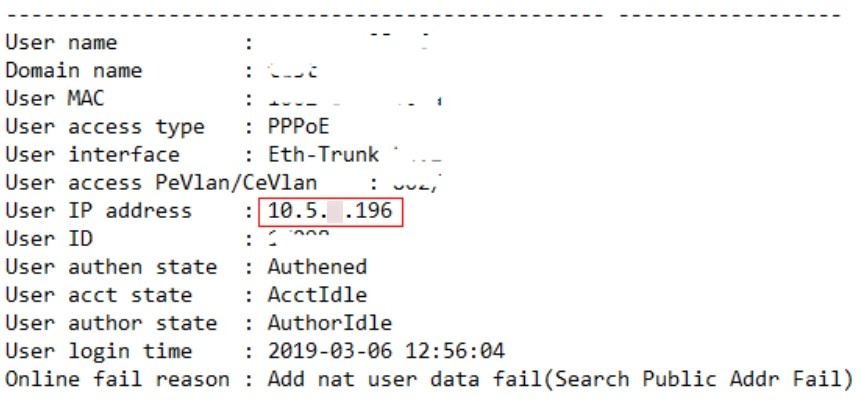
cpu high

Previous configuration:

acl 3001
 rule 5 permit ip source 10.5.x.0 0.0.0.255


Modified configuration:

acl 3001
 rule 5 permit ip source 10.5.x.0 0.0.255.255

Solution

The misconfiguration cause massive users cannot get online which generates massive re-authentication messages, as a result, the device CPU is exhausted.

Thursday, April 29, 2021

How to checking the Temperature of Each Board on Huawei Router?

 This section describes how to verify Huawei router like NE40E ME60-X8 boards temperature

Prerequisites

The router has been logged in to.

Procedure

  1. Run the display temperature[ [ lpu | mpu | sfu ] slot slot-id [ pic pic-id ] ] command to view the temperature status on each board

    <HUAWEI> display temperature
    SlotID2
     Base-Board, Unit:C, Slot2
    PCB   I2C Addr Chl  Status  Minor Major Fatal Adj_speed Temp
                                                  TMin Tmax (C)
    -----------------------------------------------------------------
    LPUF  1   1    0    NORMAL  70    80    90    60   70   36
    LPUF  1   2    0    NORMAL  60    70    80    50   60   33
    LPUF  1   4    0    NORMAL  70    80    90    60   70   35
    LPUF  1   5    0    NORMAL  80    90    100   70   80   39
    LPUF  1   6    0    NORMAL  70    80    90    60   70   38
    LPUF  2   76   1    NORMAL  90    96    102   80   90   39
    LPUF  2   76   2    NORMAL  90    96    102   80   90   40
    TCMB  1   3    0    NORMAL  70    80    90    60   70   34
    TCMB  1   7    0    NORMAL  60    70    80    50   60   31

    Pay attention to the values of boldfaced fields displayed. The Temp(C) field indicates the current temperature. The Minor field indicates the threshold of a high temperature for a minor alarm. The Major field indicates the threshold of a high temperature for a major alarm. The Fatal field indicates the threshold of a high temperature for a critical alarm. If the board temperature reaches or exceeds the value of the Fatal field, Huawe ME60 may work abnormally or be damaged.

    If the displayed value of the Temp(C) field is lower than that of the Minor field, the board temperature is normal. Then, go on with the subsequent commissioning.

Troubleshooting

If the board temperature exceeds the threshold, perform the following operations:

  1. Check whether fans are faulty and replace any faulty fans.

  2. Check whether the air filter is clogged. If it is clogged, clean it.

  3. Check whether the ambient temperature is too high. If the ambient temperature is too high, lower the temperature in the equipment room.

  4. If the board temperature is still high after the preceding operations, it is due to the high chip temperature. In this case, no action is required or contact Huawei technical support personnel.

Tuesday, December 8, 2020

Do you know what Is QoS on NE40E Router?

Many customers ask that what is QoS feature supported by Huawei Router NE40E, this chapter describes what the quality of service (QoS) is and introduces some QoS solutions, such as RSVP and DiffServ Model.

As networks rapidly develop, services on the Internet become increasingly diversified. Apart from traditional applications such as WWW, email, and File Transfer Protocol (FTP), the Internet has expanded to encompass other services such as IP phones, e-commerce, multimedia games, e-learning, telemedicine, videophones, videoconferencing, video on demand (VoD), and online movies. In addition, enterprise users use virtual private network (VPN) technologies to connect their branches in different areas so that they can access each other's corporate databases or manage remote devices through Telnet.

Figure 1 Internet services


Diversified services enrich users' lives but also increase the risk of traffic congestion on the Internet. In the case of traffic congestion, services can encounter long delays or even packet loss. As a result, services deteriorate or even become unavailable. Therefore, a solution to resolve traffic congestion on the IP network is urgently needed.

The best way to resolve traffic congestion is actually to increase network bandwidths. However, increasing network bandwidths is not practical in terms of operation and maintenance costs.

The quality of service (QoS) that uses a policy to manage traffic congestion at a low cost has been deployed. QoS aims to provide end-to-end service guarantees for differentiated services and has played an overwhelmingly important role on the Internet. Without QoS, service quality cannot be guaranteed.

Four Components in the DiffServ Model

The DiffServ model consists of four QoS components. Traffic classification and re-marking provide a basis for differentiated services. Traffic policing and shaping, congestion management, and congestion avoidance control network traffic and resource allocation in different ways and allow the system to provide differentiated services.
  • Classification and Marking: classification classifies packets while keeping the packets unchanged. Traffic marking sets different priorities for packets and therefore changes the packets.

    NOTE:

    Traffic marking refers to external re-marking, which is implemented on outgoing packets. Re-marking modifies the priority field of packets to relay QoS information to the next-hop device.

    Internal marking is used for internal processing and does not modify packets. Internal marking is implemented on incoming packets for the device to process the packets based on the marks before forwarding them. The concept of internal marking is discussed later in this document.

  • Policing and Shaping: restricts the traffic rate to a specific value. When traffic exceeds the specified rate, traffic policing drops excess traffic, and traffic shaping buffers excess traffic.

  • Congestion management: places packets in queues for buffering when traffic congestion occurs and determines the forwarding order based on a specific scheduling algorithm.

  • Congestion avoidance: monitors network resources. When network congestion intensifies, the device proactively drops packets to regulate traffic so that the network is not overloaded.

The four QoS components are performed in a specific order, as shown in the following figure.
Figure 2 QoS implementation


The QoS components are performed at different locations on the network, as shown in the following figure. In principle, traffic classification, traffic re-marking, and traffic policing are implemented on the inbound user-side interface, and traffic shaping is implemented on the outbound user-side interface (if packets of various levels are involved, queue scheduling and a packet drop policy must be configured on the outbound user-side interface). Congestion management and congestion avoidance are configured on the outbound network-side interface.
Figure 3 QoS Components


Tuesday, August 11, 2020

Introduction for A Packet‘s Adventures on Huawei Routers

Modern networks may require an array of high, medium, and low-level routers, each with differing functions and applications. This document explains how Huawei router (such as NE40E, NE80E, and NE5000E) operate.

Where Does the Data Go After Being "Swallowed" by a Router?

A router continually swallows and passes communication date.


Where does data go after being swallowed by a router?
Most data input to a router from one interface is output through another interface. These data packets are only "passers-by" and therefore also called pass-by packets. A small portion of data is "absorbed" - either sent to the CPU or dropped in transit.

56f4fc3a77f18.png

Router Forwarding Panorama
These processes are explained further throughout the following chapters.
The following figure shows how a router forwards service and protocol packets.

56f4fca45d8a0.png
The following figure shows how a router's CPU forwards a protocol packet.

56f4fcc50bb88.png