Friday, September 10, 2021

RADIUS, LDAP, HWTACACS, TACACS+ which one do I choose?

As one of the most important parts of the authentication network, the authentication server is responsible for the users' login information, usually the combination of username and password, verification. It can be said the authentication server is the most important barrier to keep illegal users from accessing. In this article, the most widely used authentication server, including RADIUS, LDAP, HWTACACS, and TACACS+, will be discussed.
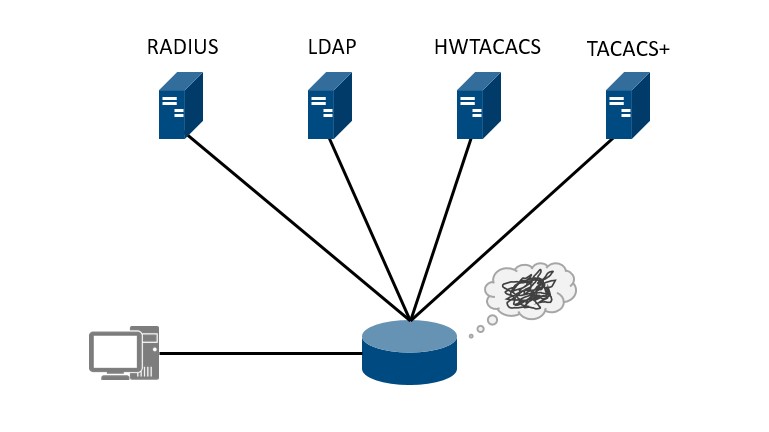
authentication protocol

Figure 1: Authentication protocol selection

RADIUS

The RADIUS is a standard protocol that uses UDP 1812 for authentication and authorization, and UDP 1813 for accounting. As the most used authentication protocol, the most advantage of RADIUS is its standardization. RADIUS is normalization in RFC 2865, as the OSPF does, the RFC document restricts the vendors to use the unified communication mechanism for the protocol programming so that the RADIUS can be used between various vendors' devices. In other words, users are able to make a choice between different vendors, rather than binding with the specific vendor.

RADIUS uses the TLV packet structure to carry the information. For example, RADIUS uses the attribute User-Name, which length ranges from 1 byte to 253 bytes, to deliver the login user's account. Due to this TLV packet structure, RADIUS provides a flexible packet encapsulation, that allows the vendors to extend the protocol themselves. For example, Huawei extends the standard RADIUS attributes Vendor-Specific to deliver more private information, such as HW-Policy-Route, it specifies the next-hop address in the policy-based routing.
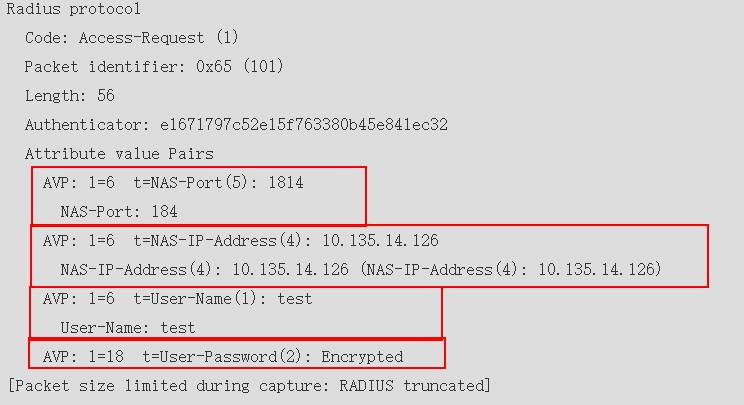
radius protocol

Figure 2 The RADIUS attributes

As we introduced, RADIUS uses the UDP 1812 for the authentication and authorization, in other words, RADIUS is not able to implement the authorization and authentication in different servers, this is totally different from the HWTACACS or TACACS+.

Despite the RADIUS advantages, the most disadvantage of RADIUS is the password field encryption only in the packets, which would lead to the user's information leakage.

LDAP

Before discussing the LDAP authentication, we'll introduce the LDAP firstly.

LDAP, short for Lightweight Directory Access Protocol, is an open, standard, and platform-crossing application protocol that is used for the distributed directory information service maintenance. It is transmitted through the HTTPS. The LDAP server which stores the data is quite different from the traditional database, unlike a table, the LDAP server stores the data in a tree structure, which is similar to the MIB and OID. Simply, the DN, distinguished name, marks the entrance of the query operation. When the DN is specified, the LDAP server will search the LDAP database according to the OU, organization unit, to get the wanted data.
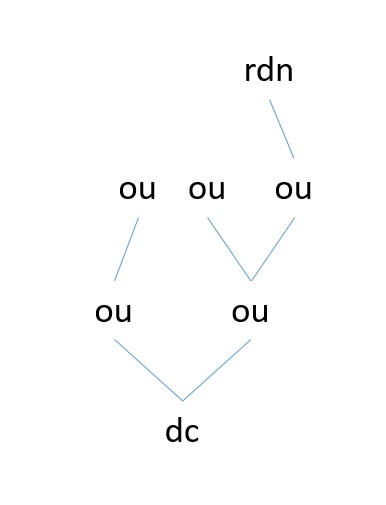
LDAP

Figure 3: LDAP directory tree structure

In this kind of store, the data querying could be much faster than the other database. On the contrary, the data insertion is not the advantage of the LDAP server, actually, the data insertion is not a key index that the authentication service requires.

The same as the RADIUS, LDAP is also a standard protocol. On the other hand, since the LDAP is based on HTTPS, that means the transferring data could be encrypted and this makes the LDAP much safer than the RADIUS does.

When using the LDAP server for the authentication, the network device delivers the username and password to the LDAP server, and the server will search the LDAP directory tree for verification.

HWTACACS

HWTACACS is a private authentication protocol released by Huawei, Unlike the RADIUS, HWTACACS separates the authentication and authorization, which means authentication, authorization, and accounting can be implemented on different servers. But the private protocol limits the other vendors and manufacturers from using this protocol. On the other hand, HWTACACS supports the command recording to record the executed commands on the HWTACACS server for the accounting.

TACACS+

As one of the most important vendors, Cisco optimizes its TACACS and published the TACACS+. The TACACS+ is a private authentication protocol, which uses TCP 49 for transmission. And the most important disadvantage of this protocol is the protocol privateness, which means it can not be used by other vendors and manufacturers. The same as the HWTACACS, TACACS+ also provides independent authentication, authorization, and accounting.


If you have other questions about Huawei or Cisco switch, you can contact our supports@thunder-link.com.


More related:

LST7X48SX6S0


S12700E-4
S5721-28X-SI-24S-AC


Thursday, August 26, 2021

Does Huawei MA5800 OLT Support Active/Standby Mode?

Huawei MA5800 does not support active/standby mode, but only load sharing mode.

MA5800 has a distributed architecture. When two control boards like 100G bandwidth MPLA and 200G bandwidth MPLB are configured, the active and standby control boards carry services at the same time to effectively utilize the bandwidth of two control boards.

Each control board consists of the control module and the switching module.
  • The control modules of two control boards always work in active/standby mode. If the control module of a control board is in the active state, this board is an active control board; if the control module of a control board is in the standby state, this board is a standby control board. When abnormalities such as faults or reset occur in the control module of the active control board, services on the active control board are automatically switched over to the control module of the standby control board, to ensure that the functions of control boards and relevant services are not interrupted.
  • The switching modules of two control boards always work in load sharing mode, and the maximum switching bandwidth of the system is the maximum switching capacity of two control boards. When one control board is removed, or the switching module of one control board is faulty, traffic of the faulty control board is automatically switched over to the other control board. The maximum switching bandwidth of the system is the maximum switching capacity of one control board.
The MA5800 does not support active/standby mode, so it does not support:
  • The protection between the active and standby control boards.
  • The protection between the ports on the active and standby control boards.
  • The protection between the aggregation groups on the active and standby control boards.

Friday, August 6, 2021

How to enable remote access control for Huawei ONT?

 This article will introduce that how to enable the remote access function for Huawei GPON ONT.

To simplify access network maintenance, you can enable the function of remotely controlling Huawei ONTs. Generally, you can use the following methods:

Method 1: Enable WAN Access Control on Web page

1. Log in to the web page of the device, In the navigation tree on the left, choose Security > WAN Access Control Configuration. In the pane on the right, click New. In the dialog box that is displayed, set the parameters of the WAN access control. ONT

2. Then click Apply.


Method 2: Enable Remote Management from ACS

1.Create a WAN Connection on ONT (Routing+Vlan 507+DHCP):

 In the navigation tree on the left, choose WAN > WAN Configuration. In the pane on the right, click New. In the dialog box that is displayed, set Parameters as shown below:

ACS

Click Apply.

ONT should receive the IP through DHCP after this step. Check Status at System Information > WAN Information. In the pane on the right, you can view the status of the WAN interface.

Acs


2. Next Configure TR069 settings for Remote Management from ACS:

In the navigation tree on the left, choose System Tools > TR-069. In the pane on the right, set the parameters related to the interconnection between the ONT and the TR-069 server

ACS

Click Apply.


Method 3: Enable Remote Login Web Page by U2000

1. Configure an ONT general VAS profile.

a. From the main menu, choose Configuration > Access Profile Management. In the navigation tree of the tab page that is displayed, choose PON Profile > ONT VAS Profile.

b. On the General ONT VAS Profile tab page, right-click, and choose Add from the shortcut menu.

c. In the dialog box that is displayed, set Name to ONT.

d. Configure static WAN parameters.


In the navigation tree, choose General Para > WAN Device > WAN Device 1 > WAN Connection. Select WAN Connection, right-click, and choose Add IP Connection from the shortcut menu. Select WAN IP Interface1 and add a static WAN interface.

  • Set WAN Enable to Enable.

  • Set Connection Type to Routed.

  • Set Vlan ID the same as the CVLAN ID of the traffic streams configured on the OLT.

  • Set Addressing Type to Static.

ONT

e. Click Next.

f. In the dialog box that is displayed, set vendor ID to HWTC, Terminal Type to General Type, and Version to V1R003C00-ZZ, click Add.

ONT

g. In the dialog box that is displayed, choose General Type Config Info > WAN Device > WAN Device 1 > WAN Connection > WAN Connection 1 > WAN IP Interface > WAN IP Interface 1, set WAN Interface Name to ONT and Service Type to INTERNET.

h. Enable the access rights on the WAN.

In the navigation tree, choose General Type Config Info > Security > ACL Services. On the right pane, set HTTP WAN Enables to enable. Then click OK.

ONT

2. Bind a general VAS profile.

a. In the Physical Map navigation tree on the Main Topology tab page, double-click the target GPON OLT, or select the target OLT, right-click, and choose NE Explorer.

b. In the navigation tree, choose GPON > GPON Management.

c. In the window on the right, choose GPON ONU.

d. On the GPON ONU tab page, set the search criteria to find the GPON ONU records.

e. Select an ONT from the list, right-click, and choose Bind General VAS Profile from the shortcut menu. In the dialog box that is displayed, select the created profile, and click OK to complete profile binding.


3. Configure the ONT VAS.

a. On the GPON ONU tab page, select an ONT, right-click, and choose Configure Value-Added Service from the shortcut menu.

b. Click the Basic Parameters tab in the dialog box that is displayed, select WAN Port, and set IP Address, Subnet Mask, and Default Gateway.

3. Click OK. The configurations take effect without the requirement of resetting the ONT.


Enter the configured static IP address in the address bar of the Internet Explorer. The login Web page is displayed. Enter the user name and password (The account is the default administrator account of the ONT). The configuration page is displayed.

Note:

1. Complete network security planning before enabling remote access control to ensure that ONTs are logged in to insecure network conditions. After the ONT login operations are complete, disable remote access control in a timely manner. If you do not complete network security planning or do not disable remote access control in a timely manner, the network may become faulty or be attacked, and Huawei will not be responsible for any related subsequences.

2. The above preceding configuration procedure uses the HG8245H as an example. The path menus and web pages of different ONT models may be different.

Thursday, July 15, 2021

How to configure the xDSL Service in PPPoE Mode on MA5600T

On a fiber to the x (FTTx) network, if the MA5600T/MA5603T/MA5608T provides x digital subscriber line (xDSL) services for broadband users and the users connect to the Internet in Point-to-Point Protocol over Ethernet (PPPoE) dialup mode, you can configure the MA5600T/MA5603T/MA5608T by referring to this topic to provide users with high-speed Internet (HIS) services. The MA5600T/MA5603T/MA5608T functions as an optical network unit (ONU) in this service. PPPoE is a commonly used Internet access mode currently. In this mode, broadband users are authenticated, authorized, and charged in Authentication, Authorization and Accounting (AAA) method.

Service Requirements

  • The user accesses the Internet through the PPPoE dialup.
  • The user packet goes upstream carrying two VLAN tags. The outer VLAN tag identifies the service and the inner VLAN tag identifies the user. The service of each user is identified by unique S-VLAN+C-VLAN, that is, this is a 1:1 access scenario.
  • A traffic profile is adopted for rate limitation. The user access rate is 2048 kbit/s.
  • To ensure reliability, dual GE ports are adopted for upstream transmission, and link aggregation is configured for the two upstream ports.

Figure 1 shows an example network of the xDSL Internet access service through the PPPoE dialup.

Figure 1 Example network of the xDSL Internet access service through the PPPoE dialup


Prerequisite

  • The AAA function must be configured.
    • To enable the AAA function on the device, see Configuring the Local AAA.
    • If the AAA function is implemented by the BRAS, a connection to the BRAS must be established. The BRAS should be capable of identifying the VLAN tag of the MA5600T/MA5603T/MA5608T in the upstream direction. For the identification purpose, the user name and password for dial-up Internet access must be configured on the BRAS.

Procedure

  1. Configure a VLAN.

    Configure S-VLAN 50 with the stacking attribute. The user packet goes upstream carrying two VLAN tags. The outer VLAN tag identifies the service and the inner VLAN tag identifies the user. The service of each user is identified by unique S-VLAN+C-VLAN, and the VLAN forwarding mode is the S-VLAN+C-VLAN mode.

    huawei(config)#vlan 50 smart  
    huawei(config)#vlan attrib 50 stacking 
    huawei(config)#vlan forwarding 50 vlan-connect
  2. Configure upstream ports.

    Add upstream ports 0/19/0 and 0/19/1 to VLAN 50. Two ports are added for the purpose of port aggregation.

    huawei(config)#port vlan 50 0/19 0   
    huawei(config)#port vlan 50 0/19 1  
    

    To aggregate the two upstream ports as one aggregation group, set the packet forwarding mode of the aggregation group to egress-ingress, and set the aggregation group to work in the LACP static mode, do as follows:

    huawei(config)#link-aggregation 0/19 0 0/19 1 egress-ingress workmode lacp-static
    NOTE:

    The aggregated ports must meet the following requirements: The ports must work in the full-duplex mode; the port rates must be the same and the rate of an electrical port must not be of the auto-negotiation type; the attributes of the ports, such as the default VLAN ID (PVID) and VLAN, must be the same; one port can belong to only one aggregation group; the port must not be a mirroring destination port; the port must not be in the auto-negotiation mode; the start port ID must be smaller than the end port ID.

  3. In the ADSL access mode, follow this procedure.
    1. Configure an ADSL2+ profile. For details, see Overview of Configuring ADSL2+ Templates and Profiles. The default ADSL2+ line template (line template 1) and the default ADSL2+ alarm template (alarm template 1) are used as an example.
    2. Activate the ADSL port, and bind the ADSL2+ templates.

      NOTE:

      By default, an ADSL port is in the activated state. Before binding a template to the port, you must deactivate the port.

      In the ADSL access mode, bind the default ADSL2+ line template 1 and ADSL2+ alarm template 1 to ADSL port 0/2/0.

      huawei(config)#interface adsl 0/2
      huawei(config-if-adsl-0/2)#deactivate 0
      huawei(config-if-adsl-0/2)#activate 0 profile-index 1
      huawei(config-if-adsl-0/2)#alarm-config 0 1
      huawei(config-if-adsl-0/2)#quit

    3. Run the display traffic table command to query the existing traffic profiles in the system.

      huawei(config)#display traffic table ip from-index 0
      { <cr>|to-index<K> }:
      
        Command:
                display traffic table ip from-index 0
        ---------------------------------------------------------------------------
         TID CIR      CBS      PIR      PBS      Pri Copy-policy         Pri-Policy
             (kbps)   (bytes)  (kbps)   (bytes)
        ---------------------------------------------------------------------------
           0 1024     34768    2048     69536      6 -                      tag-pri
           1 2496     81872    4992     163744     6 -                      tag-pri
           2 512      18384    1024     36768      0 -                      tag-pri
           3 576      20432    1152     40864      2 -                      tag-pri
           4 64       4048     128      8096       4 -                      tag-pri
           5 2048     67536    4096     135072     0 -                      tag-pri
           6 off      off      off      off        0 -                      tag-pri
        ---------------------------------------------------------------------------
        Total Num : 7

      According to service requirements, the user access rate is 2048 kbit/s. The query result shows that traffic profile 5 (for inbound and outbound rate limitation) meets the requirements.

      NOTE:
      • If a matched traffic profile is not available in the system, run the traffic table ip command to configure a new traffic profile.
      • On the MA5600T/MA5603T/MA5608T, the user access rate can be limited by either a traffic profile or an ADSL line profile. When both profiles are configured, the smaller one of the two rates configured in the profiles is adopted as the user bandwidth. In this example, the traffic profile is used to limit the user access rate.

    4. Run the service-port command to create a service port, adopt traffic profile 5, and set the S-VLAN ID to 50. The index of the service port is 1, and the VPI and VCI of the service port must be the same as the management VPI and VCI of the peer modem. Assume that the management VPI and VCI of the modem are 1 and 39, and the access port ID is 0/2/0. To facilitate the maintenance of the service port, also configure the service port description.
      huawei(config)#service-port 1 vlan 50 adsl 0/2/0 vpi 1 vci 39 inbound traffic-table index 5 outbound traffic-table index 5    
      huawei(config)#service-port desc 1 description Vlanid:50/adsl/vpi:1vci:39/stacking 
    5. Set the C-VLAN ID of the preset service port 1 to 10 for identifying the user. Configure the important user packet with a higher priority so that the user packet can be processed with precedence, and set the priority of the inner VLAN to 4.
      huawei(config)#stacking label service-port 1 10 
      huawei(config)#stacking inner-priority service-port 1 4
      
  4. In the SHDSL access mode, follow this procedure.
    1. Configure an SHDSL profile. For details, see Configuring SHDSL Profiles. Add SHDSL line profile 3 of the PTM type, with the maximum line rate 2048 kbit/s.
      huawei(config)#shdsl line-profile quickadd 3 ptm rate 512 2048 
    2. Activate SHDSL port 0/3/1, and bind the preset SHDSL line profile 3 and the default SHDSL alarm template (alarm template 1) to the port.

      NOTE:

      By default, an SHDSL port is in the activated state. Before binding a profile or template to the port, you must deactivate the port.

      huawei(config)#interface shl 0/3 
      huawei(config-if-shl-0/3)#deactivate 1
      huawei(config-if-shl-0/3)#activate 1 3
      huawei(config-if-shl-0/3)#alarm-config 1 1 
      huawei(config-if-shl-0/3)#quit 

    3. Run the display traffic table command to query the existing traffic profiles in the system.

      huawei(config)#display traffic table ip from-index 0
      { <cr>|to-index<K> }:
      
        Command:
                display traffic table ip from-index 0
        ---------------------------------------------------------------------------
         TID CIR      CBS      PIR      PBS      Pri Copy-policy         Pri-Policy
             (kbps)   (bytes)  (kbps)   (bytes)
        ---------------------------------------------------------------------------
           0 1024     34768    2048     69536      6 -                      tag-pri
           1 2496     81872    4992     163744     6 -                      tag-pri
           2 512      18384    1024     36768      0 -                      tag-pri
           3 576      20432    1152     40864      2 -                      tag-pri
           4 64       4048     128      8096       4 -                      tag-pri
           5 2048     67536    4096     135072     0 -                      tag-pri
           6 off      off      off      off        0 -                      tag-pri
        ---------------------------------------------------------------------------
        Total Num : 7

      According to service requirements, the user access rate is 2048 kbit/s. The query result shows that traffic profile 5 (for inbound and outbound rate limitation) meets the requirements.

      NOTE:
      • If a matched traffic profile is not available in the system, run the traffic table ip command to configure a new traffic profile.
      • On the MA5600T/MA5603T/MA5608T, the user access rate can be limited by either a traffic profile or an SHDSL line profile. When both profiles are configured, the smaller one of the two rates configured in the profiles is adopted as the user bandwidth. In this example, the traffic profile is used to limit the user access rate.

    4. Run the service-port command to create a service port, adopt traffic profile 5, and set the S-VLAN ID to 50. Set the SHDSL channel mode to PTM, and create service port 2 on SHDSL port 0/3/1. To facilitate the maintenance of the service port, also configure the service port description.
      huawei(config)#service-port 2 vlan 50 shdsl mode ptm 0/3/1 inbound traffic-table
       index 5 outbound traffic-table index 5
      huawei(config)#service-port desc 2 description Vlanid:50/shdsl/vpi:1vci:39/stacking
    5. Set the C-VLAN ID of the preset service port 2 to 10 for identifying the user. Configure the important user packet with a higher priority so that the user packet can be processed with precedence, and set the priority of the inner VLAN to 4.
      huawei(config)#stacking label service-port 2 10
      huawei(config)#stacking inner-priority service-port 2 4 
  5. In the VDSL access mode, follow this procedure.

    In this example, the VDSL normal mode is used as an example.

    1. Configure a VDSL profile. For details, see Overview of Configuring VDSL2 Templates and Profiles. Assume that the VDSL profile ID is 3, downstream rate is 2048 kbit/s, channel mode is the interleave mode, maximum downstream interleave delay is 8 ms, maximum upstream interleave delay is 2 ms, SNR margin is 6 dB, minimum downstream INP is 4, and minimum upstream INP is 2.
      huawei(config)#vdsl line-profile quickadd 3 snr 60 0 300 60 0 300
      huawei(config)#vdsl channel-profile quickadd 3 path-mode ptm interleaved-delay 8 2 inp 4 2 rate 
      128 10000 128 10000 2048 2048
      huawei(config)#vdsl line-template quickadd 3 line 3 channel1 3 100 100
    2. Activate VDSL port 0/4/1, and bind the preset VDSL line template 3 and the default VDSL alarm template (alarm template 1) to the port.

      NOTE:

      By default, a VDSL port is in the activated state. Before binding a template to the port, you must deactivate the port.

      huawei(config)#interface vdsl 0/4 
      huawei(config-if-vdsl-0/4)#deactivate 1 
      huawei(config-if-vdsl-0/4)#activate 1 template-index 3
      huawei(config-if-vdsl-0/4)#alarm-config 1 1 
      huawei(config-if-vdsl-0/4)#quit 

    3. Run the display traffic table command to query the existing traffic profiles in the system.

      huawei(config)#display traffic table ip from-index 0
      { <cr>|to-index<K> }:
      
        Command:
                display traffic table ip from-index 0
        ---------------------------------------------------------------------------
         TID CIR      CBS      PIR      PBS      Pri Copy-policy         Pri-Policy
             (kbps)   (bytes)  (kbps)   (bytes)
        ---------------------------------------------------------------------------
           0 1024     34768    2048     69536      6 -                      tag-pri
           1 2496     81872    4992     163744     6 -                      tag-pri
           2 512      18384    1024     36768      0 -                      tag-pri
           3 576      20432    1152     40864      2 -                      tag-pri
           4 64       4048     128      8096       4 -                      tag-pri
           5 2048     67536    4096     135072     0 -                      tag-pri
           6 off      off      off      off        0 -                      tag-pri
        ---------------------------------------------------------------------------
        Total Num : 7

      According to service requirements, the user access rate is 2048 kbit/s. The query result shows that traffic profile 5 (for inbound and outbound rate limitation) meets the requirements.

      NOTE:
      • If a matched traffic profile is not available in the system, run the traffic table ip command to configure a new traffic profile.
      • On the MA5600T/MA5603T/MA5608T, the user access rate can be limited by either a traffic profile or a VDSL line profile. When both profiles are configured, the smaller one of the two rates configured in the profiles is adopted as the user bandwidth. In this example, the traffic profile is used to limit the user access rate.

    4. Run the service-port command to create a service port, adopt traffic profile 5, and set the S-VLAN ID to 50. Set the VDSL channel mode to PTM, and create service port 3 on VDSL port 0/4/1. To facilitate the maintenance of the service port, also configure the service port description.
      huawei(config)#service-port 3 vlan 50 vdsl mode ptm 0/4/1 inbound traffic-table 
      index 5 outbound traffic-table index 5
      huawei(config)#service-port desc 3 description Vlanid:50/vdsl/vpi:1vci:39/stacking
    5. Set the C-VLAN ID of the preset service port 3 to 10 for identifying the user. Configure the important user packet with a higher priority so that the user packet can be processed with precedence, and set the priority of the inner VLAN to 4.
      huawei(config)#stacking label service-port 3 10 
      huawei(config)#stacking inner-priority service-port 3 4  
  6. Configure the user account security.

    The PITP P mode can be enabled to protect the user account against theft and roaming. The RAIO mode can be customized according to actual requirements. The encoding format required by China Telecom is considered as an example. The encoding format required by China Telecom is a customized format, corresponding to the cntel option.

    huawei(config)#pitp enable pmode
    huawei(config)#raio-mode cntel pitp-pmode 
    NOTE:
    For details about the PITP configuration for the user account security, see Configuring Anti-theft and Roaming of User Accounts Using PITP.
  7. Save the data.
    huawei(config)#save

Verification

  • Dialing verification on the user side:
    • Step 1: Configure the user name and password for the dialup on the modem (the user name and password must be the same as those configured on the BRAS).
    • Step 2: Dial up on the PC by using the PPPoE dialup software. After the dialup is successful, the user can access the Internet.
    • Step 3: When FTP is used to download files, after the dialup is performed on the PPPoE dialup software, the PPPoE dialup software prompts that the dialup is successful. Then, the PC can access the Internet in the PPPoE mode.
    • Step 4: When downloading files through FTP, you can open Task Manager in Windows and click Networking to check the link speed. Then, you can calculate the Internet access rate by the following formula: Attainable Internet access rate = Computer network adapter rate/48 x 53 x 8. The calculation result approximates to the planned 2048 kbit/s.
  • Remote emulation dialing verification:
    • Step 1: On the MA5600T/MA5603T/MA5608T, run the pppoe simulate start command to start the PPPoE emulation dialer (the entered user name, password, and authentication mode must be the same as those configured on the BRAS).
    • Step 2: Run the display pppoe simulate info command to query status of PPPoE emulation dialing. If the PPPoE emulation dialing result is success, that is, simulating interaction between the user and the BRAS is successful, the user can access the Internet in the PPPoE access mode.
    • After the emulation verification is completed, run the pppoe simulate stop command to stop the PPPoE emulation dialing task initiated by the user.

Configuration File

Configuration File in the ADSL access mode:

vlan 50 smart  
vlan attrib 50 stacking 
vlan forwarding 50 vlan-connect
port vlan 50 0/19 0
port vlan 50 0/19 1
link-aggregation 0/19 0 0/19 1 egress-ingress workmode lacp-static
interface adsl 0/2
deactivate 0
activate 0 profile-index 1
alarm-config 0 1
quit
service-port 1 vlan 50 adsl 0/2/0 vpi 1 vci 39 inbound traffic-table index 5 outbound traffic-table index 5 
service-port desc 1 description Vlanid:50/adsl/vpi:1vci:39/stacking
stacking label service-port 1 10
stacking inner-priority service-port 1 4
pitp enable pmode
raio-mode cntel pitp-pmode 
save

Configuration File in the SHDSL access mode:

vlan 50 smart  
vlan attrib 50 stacking 
vlan forwarding 50 vlan-connect
port vlan 50 0/19 0
port vlan 50 0/19 1
link-aggregation 0/19 0 0/19 1 egress-ingress workmode lacp-static
shdsl line-profile quickadd 3 ptm rate 512 2048 
interface shl 0/3
deactivate 1
activate 1 3
alarm-config 1 1
quit
service-port 2 vlan 50 shdsl mode ptm 0/3/1 inbound traffic-table index 5 outbound traffic-table index 5
service-port desc 2 description Vlanid:50/shdsl/vpi:1vci:39/stacking
stacking label service-port 2 10  
stacking inner-priority service-port 2 4 
pitp enable pmode
raio-mode cntel pitp-pmode 
save

Configuration File in the VDSL access mode:

vlan 50 smart  
vlan attrib 50 stacking 
vlan forwarding 50 vlan-connect
port vlan 50 0/19 0
port vlan 50 0/19 1
link-aggregation 0/19 0 0/19 1 egress-ingress workmode lacp-static
vdsl line-profile quickadd 3 snr 60 0 300 60 0 300
vdsl channel-profile quickadd 3 path-mode ptm interleaved-delay 8 2 inp 4 2 rate 
128 10000 128 10000 2048 2048
interface vdsl 0/4
deactivate 1
activate 1 template-index 3
alarm-config 1 1
quit
service-port 3 vlan 50 vdsl mode ptm 0/4/1 inbound traffic-table index 5 outbound traffic-table index 5
service-port desc 3 description Vlanid:50/vdsl/vpi:1vci:39/stacking
stacking label service-port 3 10
stacking inner-priority service-port 3 4 
stacking inner-priority service-port 2 4 
pitp enable pmode
raio-mode cntel pitp-pmode 
save

Thursday, June 24, 2021

Do you know DSLAM Vectoring VDSL2 Crosstalk NEXT and FEXT?

 VDSL2 Crosstalk Classifications

VDSL2 crosstalk on DSLAM is classified as near-end crosstalk (NEXT) and far-end crosstalk (FEXT).

Figure shows the crosstalk of the two types.


  • In NEXT, TX signals are sent from the interfering pair, coupled to the interfered pair, and then sent to the near-end RX end of the interfered pair. For example, in a bundle of lines, when signals in the upstream direction of a line interfere with signals in the downstream direction of an adjacent line, or signals in the downstream direction of a line interfere with signals in the upstream direction of an adjacent line, NEXT occurs.
  • In FEXT, TX signals are sent from the interfering pair, coupled to the interfered pair, and then sent along the interfered pair to the far-end RX end of the interfered pair. For example, in a bundle of lines, when signals in the upstream direction of a line interfere with signals in the upstream direction of an adjacent line, or signals in the downstream direction of a line interfere with signals in the downstream direction of an adjacent line, FEXT occurs.

In other words, NEXT is interference between upstream signals and downstream signals of different pairs, and FEXT is interference between upstream signals or between downstream signals of different pairs.

How Can We Eliminate NEXT and FEXT

  • VDSL2 uses the frequency division multiplexing (FDM) technology to transmit data. Therefore, TX signals of the interfering pair and RX signals of the interfered pair use different frequencies. Therefore, the impact of NEXT can be eliminated or mitigated using a filter.
  • TX signals of the interfering pair cannot be eliminated using a filter because these signals use the same frequency band as the RX signals of the interfered pair. In addition, VDSL2 uses a high frequency band (up to 30 MHz) for short-distance transmission (usually within 1.2 km). As a result, FEXT has a more severe effect on VDSL2 than on other DSL access modes. Therefore, FEXT is the main factor of degrading VDSL2 performance. To eliminate FEXT, the ITU-T Recommendation promoted G.993.5-compliant vectoring.
NOTE:
  • To eliminate or mitigate crosstalk, the DSL industry promoted a series of techniques totally called the dynamic spectrum management (DSM) technology. The DSM technology involves four stages, level 0 through level 3 stages. At level 0 through level 2 stages, the AN manages the spectra of the TX signals of single- or multi-DSL pairs, which eliminates FEXT only to a certain extend. To completely cancel FEXT on VDSL2 lines, the ITU-T Recommendation launched vectoring. Vectoring uses vectors to cancel FEXT on VDSL2 lines, thereby significantly improving the bandwidth and performance of multi-pair VDSL2 lines. Therefore, vectoring is also called level-3 DSM.
  • Vectoring can significantly eliminate only FEXT.

Friday, June 4, 2021

ONT Fails to Be Added to the MA5608T Because the H808EPSD Version Is Low

 Contents

Issue Description

On Huawei MA5608T+H808EPSD, the system prompts that the board does not support this operation when confirming an automatically discovered ONT.

Alarm Information

0x023100ed Board Software Automatic Expansion Failure

Handling Process

1. Run the display board command to check whether the status of each board is normal.


2. Run the display alarm active all command to query the alarms. The command output shows the 0x023100ed Board Software Automatic Expansion Failure alarm on the H808EPSD board.


3. Run the display io-packetfile information command, output shows that there is no I/O package of H808EPSD.


4. Run the display version command, the output shows that the version of the MCUD control board is V800R017C00 and the software app version of the H808EPSD board is 2013. The version difference is large.


5. Load the combined package of the V800R017C00 version and add the I/O package of the H808EPSD board. The issue is solved.

Root Cause

The H808EPSD board software is not upgraded to the latest version. As a result, the board status is normal, but the board cannot carry services or the services are limited.

Solution

Upgrade the software of the H808EPSD board to the latest version.

Suggestions

When a user interface board is inserted, the version information about the board is reported to the system. If the version of the board software is inconsistent with that of the board software stored in the flash of the control board, the system automatically loads the software. If the automatic loading fails, the system generates the alarm 0x2420a003 Automatic Loading Failure. Impact of the alarm on the system: The board software of the interface board is not upgraded to the latest version. As a result, the board cannot carry services or the services are limited.