Showing posts with label GPON OLT. Show all posts

Monday, March 11, 2024

MA5800 X7 can not synchronize with NCE through the VPN instance


This article shares with you a case about Huawei MA5800 X7 can not synchronize with NCE through the VPN instance. I hope you like it!


Issue description

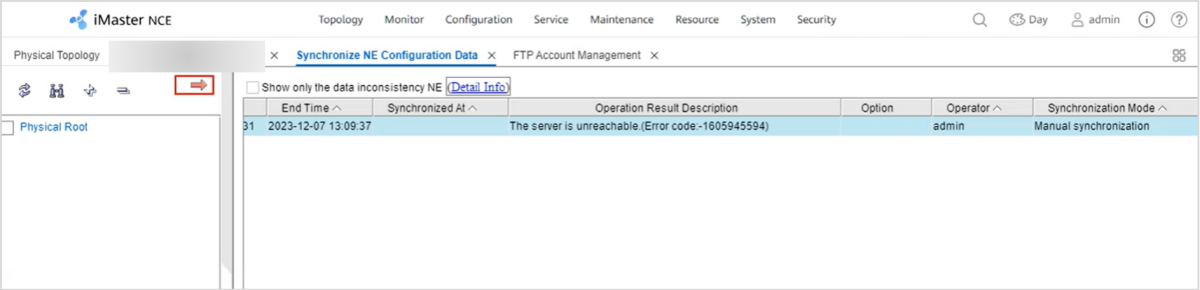
The NCE can not manage the MA5800 X7, the synchronization by ftp/sftp or tftp is not successful. The NE backup can not be done.


OLT


Handling Process

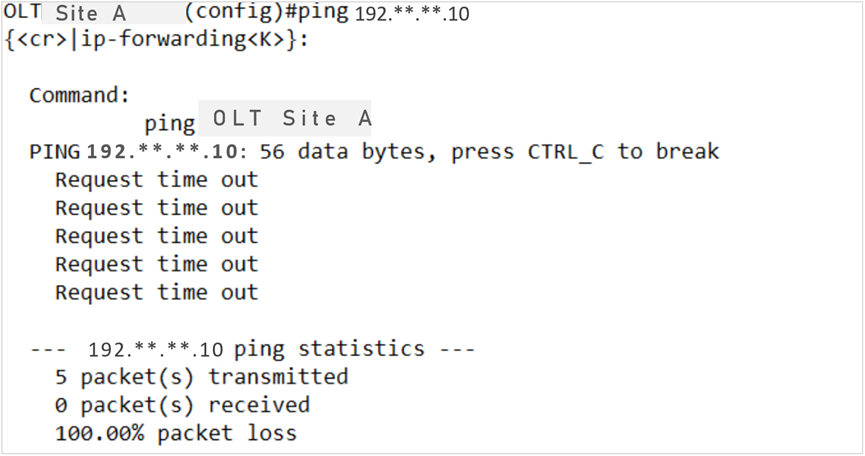
1. The NCE can ping OLT, but OLT can not ping NE directly.


1764308106423406592


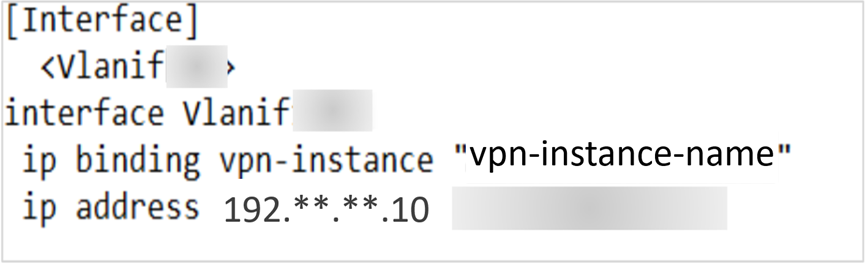
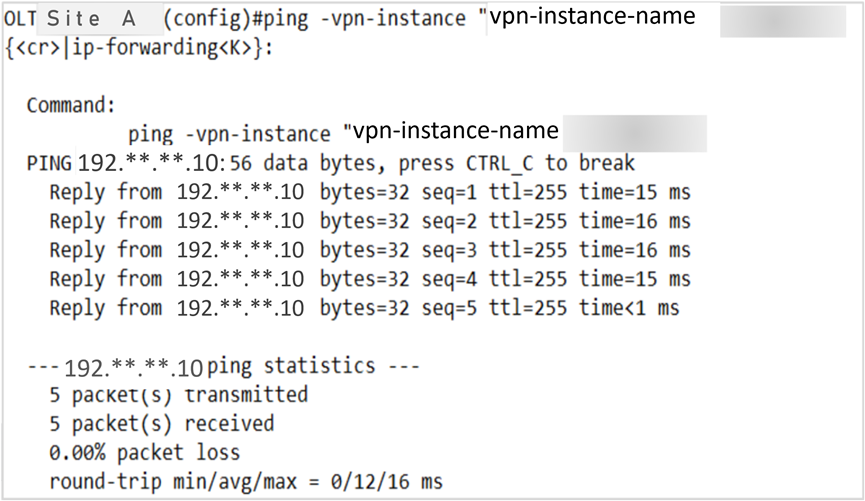
2. The OLT has inband management, VLAN interface uses a VPN Instance.


1764308169025101824


1764308227225636864


Root cause

The VPN instance corresponding to the xFTP server is not configured. The xFTP Server is the NCE. For this reason is not possible to synchronize the NE or backup the data configuration.


Solution

The VPN instance assigned to the xFTP Serverv(NCE) should be specified according to the following command:


sysman sftp vpn-instance 192.**.**.10 VPN_NAME


Summary

The sysman vpn-instance(xFTP) command is used to configure the VPN instance corresponding to an xFTP server. You can select a VPN instance as the one corresponding to the IP address of an xFTP server by running this command. After this command is executed successfully, when a device communicates with the user-specified xFTP server, it processes only requests on the corresponding VPN but not requests from other VPNs or public networks.

Wednesday, December 7, 2022

ONU failure to go online – Problems with ODN

 This actical mainly about problems with ODN and how we can fix it. This is the last article about problems with ODN. In the previous post, I explained – connected connectors of different types and connected fibers of different types.


As I said in the first article about problems with ODN, there are the following problems:

  1. Feeder/distribution/drop fibers are broken,

  2. Dirty optical connectors,

  3. Bent fibers,

  4. Problem with optical splitters,

  5. Connected connectors of different types,

  6. Connected fibers of different types,

  7. Bad splices,

  8. Incorrectly designed networks or incorrectly realized networks.


Today I will explain bad splices and incorrectly designed networks or incorrectly realized networks.


7. Bad splices


There are three types of connection optical fibers: fusion splices, mechanical splices, and optical connectors. Now, I will shortly explain fusion and mechanical splices, bad splices, and the process for fix this problem.


We choose the way of connecting fibers based on: low attenuation, low reflection, and high reliability. In addition, application and price.


The most reliable and commonly used way of connecting fibers is fusion splice. This way of connecting the optical fibers enables low attenuation, low reflection, and high reliability. It is used mainly in the feeder and distribution segments, but also in the drop part of ODN. Generally, wherever on/off fiber is not required.


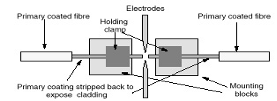
For fusion splicing, we use a special machine, is fusion splicer. In short, the fibers are prepared using certain tools (e.g. cable slitter, tube cutter, fiber striper, etc.), then cleaning with alcohol or some other liquid for fibers and wipes, then the optical fibers are cut using an optical cleaver. After that, the optical fibers are connected by a fusion connector. In the end, the fusion machine checks the splice: the strength of the joint and evaluates the attenuation.


Mechanical splices are very rarely used. The reason is potentially high attenuation, high reflection, and low reliability. Index matching gel becomes obsolete over time and parameters of the mechanical splice degrades. A mechanical splice is used when we do not have a sufficient number of fusion splicers, when we rarely splice and when there is an emergency intervention. Because that, they are used a little, I will not talk about them and the problems they can cause. That will be one of the new topics.


After short explaining how to connect fibers, I will now explain the most common problems with fusion splices.


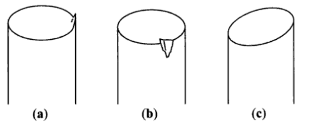
There are two main causes of bad splices. Dirty or insufficiently cleaned fibers will deviate during the process of splicing. Another problem is bad to cut fibers. The fiber must be cut at an angle of 90 degrees. This is very important to ensure a quality connection - a little attenuation and little reflection.


Sometimes fusion splicers can make a bad splice. Therefore, the electrodes and software settings should be checked.


Good splice has attenuation about 0.01 dB, max attenuation is 0.1dB. A bad splice may have a greater attenuation than the 0.1dB, values are from 1 to 5 dB. These values of attenuation can disable the connection between Huawei GPON ONT and GPON OLT such as MA5800 OLT. We can see the problem immediately after the splice is completed and repeat the splicing. After finished build the network, we must test all-optical lines by OTDR. With OTDR we can see all incorrect events on the route.


In the next two pictures, we can see the process of fusion splicing (figure 1.) and common cleave problems (figure 2.). In figure 2, there are three common cleave problems: lip, chip, and angle.


sl1


Figure 1. Process of fusion splicing

(https://imedea.uib-csic.es/~salvador/docencia/coms_optiques/addicional/ibm/ch06/06-04.html)


sl.2


Figure 2. Common cleave problems

(https://www.fiberoptics4sale.com/blogs/archive-posts/95049286-fiber-optic-cleaver)


8. Incorrectly designed networks or incorrectly realized network


Sometimes an error is made during design or building and an inadequate optical splitter is installed. In this way, we don`t have the optimal number of fiber divisions. Optical power may be higher or more often lower than required. For example, instead of splitting the fiber 32 times, it is split 16 or 64 times.


We can locate this problem with OTDR or using a PON meter. Incorrect optical power can disable connections between ONUs and OLT. The problem will be fixed when we change the inadequate optical splitter.


Thursday, September 8, 2022

Introduction to Portal Authentication

802.1X and PPPoE access control methods require dedicated client software to be installed and are effective only at the access layer, which does not facilitate network deployment and user access. To solve this problem, an access control mode, which does not require dedicated client software and allows authentication control points to be flexibly deployed, is required.

Portal authentication is developed in this context. It does not require dedicated clients, providing a flexible access control mode. Access control can be implemented at the access layer and the ingress of key data to be protected. Portal authentication is also called web authentication because it uses popular web pages for authentication, which means that users can be authenticated using only a web browser.

MAC address-prioritized portal authentication can be used to avoid frequent password and account entry for reauthentication in the case that a user roams or goes offline and then online again in various scenarios.

In MAC address-prioritized portal authentication, the access device sends the MAC address of a terminal to the RADIUS server for authentication when the terminal performs portal authentication for the first time. If the authentication fails, portal authentication is triggered for the user so that the user can enter the user name and password for identity authentication. The RADIUS server caches a terminal user's MAC address after the first authentication succeeds. If the terminal user is disconnected and then connected to the network within the MAC address validity period, the RADIUS server searches for the MAC address of the terminal user in the cache to authenticate the terminal user. After the authentication succeeds, the portal authentication page is not pushed to the user, and the user can directly access network resources.

  • Portal authentication takes effect based on physical ports. If a user connected to a port passes the authentication, the user can access network resources through the port. If a user fails to pass the authentication, the user cannot access network resources.
  • Currently, ports that are enabled with portal authentication support only network resource access through HTTP, and does not support other services (such as connected printers, IPC services, AP services, and dumb terminals). If other services need to be supported, use other ports for service isolation.
  • Currently, only the portal protocol 2.0 is supported.

HTTP has security risks due to its limitations. Ensure that HTTP is used in a secure environment.

A portal authentication system consists of authentication clients, access device Huawei MA5800 OLT or MA5600T GPON OLT, portal server, and RADIUS server. The portal server and RADIUS server are built in iMaster NCE-Campus, as shown in Figure 1.

Figure 1 Portal authentication system


  • Authentication client: A browser that runs the HTTP protocol or a host that runs the portal client software.
  • Access device (OLT Huawei MA5800 X7 for example):
    • Redirects all HTTP requests of a user to the portal server before authentication.
    • Interacts with the portal server and RADIUS server to implement identity authentication.
    • Allows the user to access authorized network resources after the authentication succeeds.
  • Portal server: Receives authentication requests from a portal client, provides portal services and authentication web pages, and exchanges authentication information of the authentication client with the access device.
  • RADIUS server: Interacts with the access device to authenticate users.

Friday, August 6, 2021

How to enable remote access control for Huawei ONT?

 This article will introduce that how to enable the remote access function for Huawei GPON ONT.

To simplify access network maintenance, you can enable the function of remotely controlling Huawei ONTs. Generally, you can use the following methods:

Method 1: Enable WAN Access Control on Web page

1. Log in to the web page of the device, In the navigation tree on the left, choose Security > WAN Access Control Configuration. In the pane on the right, click New. In the dialog box that is displayed, set the parameters of the WAN access control. ONT

2. Then click Apply.


Method 2: Enable Remote Management from ACS

1.Create a WAN Connection on ONT (Routing+Vlan 507+DHCP):

 In the navigation tree on the left, choose WAN > WAN Configuration. In the pane on the right, click New. In the dialog box that is displayed, set Parameters as shown below:

ACS

Click Apply.

ONT should receive the IP through DHCP after this step. Check Status at System Information > WAN Information. In the pane on the right, you can view the status of the WAN interface.

Acs


2. Next Configure TR069 settings for Remote Management from ACS:

In the navigation tree on the left, choose System Tools > TR-069. In the pane on the right, set the parameters related to the interconnection between the ONT and the TR-069 server

ACS

Click Apply.


Method 3: Enable Remote Login Web Page by U2000

1. Configure an ONT general VAS profile.

a. From the main menu, choose Configuration > Access Profile Management. In the navigation tree of the tab page that is displayed, choose PON Profile > ONT VAS Profile.

b. On the General ONT VAS Profile tab page, right-click, and choose Add from the shortcut menu.

c. In the dialog box that is displayed, set Name to ONT.

d. Configure static WAN parameters.


In the navigation tree, choose General Para > WAN Device > WAN Device 1 > WAN Connection. Select WAN Connection, right-click, and choose Add IP Connection from the shortcut menu. Select WAN IP Interface1 and add a static WAN interface.

  • Set WAN Enable to Enable.

  • Set Connection Type to Routed.

  • Set Vlan ID the same as the CVLAN ID of the traffic streams configured on the OLT.

  • Set Addressing Type to Static.

ONT

e. Click Next.

f. In the dialog box that is displayed, set vendor ID to HWTC, Terminal Type to General Type, and Version to V1R003C00-ZZ, click Add.

ONT

g. In the dialog box that is displayed, choose General Type Config Info > WAN Device > WAN Device 1 > WAN Connection > WAN Connection 1 > WAN IP Interface > WAN IP Interface 1, set WAN Interface Name to ONT and Service Type to INTERNET.

h. Enable the access rights on the WAN.

In the navigation tree, choose General Type Config Info > Security > ACL Services. On the right pane, set HTTP WAN Enables to enable. Then click OK.

ONT

2. Bind a general VAS profile.

a. In the Physical Map navigation tree on the Main Topology tab page, double-click the target GPON OLT, or select the target OLT, right-click, and choose NE Explorer.

b. In the navigation tree, choose GPON > GPON Management.

c. In the window on the right, choose GPON ONU.

d. On the GPON ONU tab page, set the search criteria to find the GPON ONU records.

e. Select an ONT from the list, right-click, and choose Bind General VAS Profile from the shortcut menu. In the dialog box that is displayed, select the created profile, and click OK to complete profile binding.


3. Configure the ONT VAS.

a. On the GPON ONU tab page, select an ONT, right-click, and choose Configure Value-Added Service from the shortcut menu.

b. Click the Basic Parameters tab in the dialog box that is displayed, select WAN Port, and set IP Address, Subnet Mask, and Default Gateway.

3. Click OK. The configurations take effect without the requirement of resetting the ONT.


Enter the configured static IP address in the address bar of the Internet Explorer. The login Web page is displayed. Enter the user name and password (The account is the default administrator account of the ONT). The configuration page is displayed.

Note:

1. Complete network security planning before enabling remote access control to ensure that ONTs are logged in to insecure network conditions. After the ONT login operations are complete, disable remote access control in a timely manner. If you do not complete network security planning or do not disable remote access control in a timely manner, the network may become faulty or be attacked, and Huawei will not be responsible for any related subsequences.

2. The above preceding configuration procedure uses the HG8245H as an example. The path menus and web pages of different ONT models may be different.