Monday, July 17, 2023

Can’t Add Fiber in Free OTN Ports?

This article share a case with you, when I faced a problem with creating fiber between 2 NEs OSN1800V universal line boards, and how to solve it.


Description

After we upgraded a branch site NE from OSN1800II to OSN1800V and deleted all fibers between the old branch NE with the Main NE, I come to create the fibers from the new NE universal line UNQ2 to the main NE also UNQ2 board, an error message appeared ((the sink port has been configured)), while there were no fibers created between the 2NEs neither in the Topology nor in the Fiber/cable/Microwave Management page.
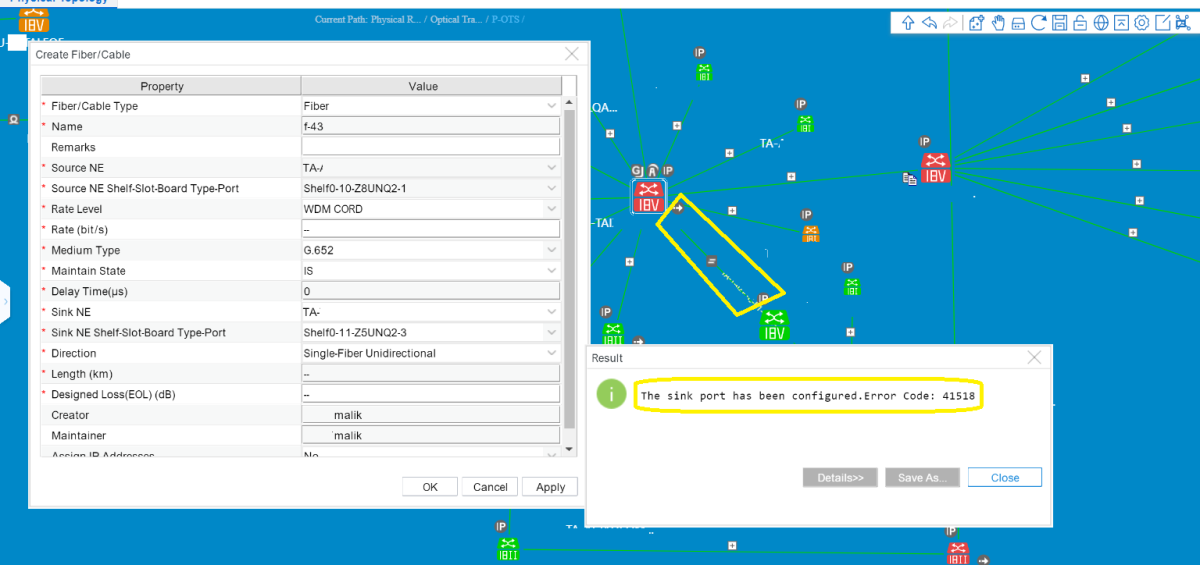
 

port used


Procedures of Check 

1st I made an upload for both NEs, but the problem persisted. 

2nd I checked the fibers in the Main site from the NE EXPLORER > Configuration > Fiber/Cable Synchronization to be sure there is no virtual or physical fiber still created and related to the old branch NE, but there were no old fibers in the list.
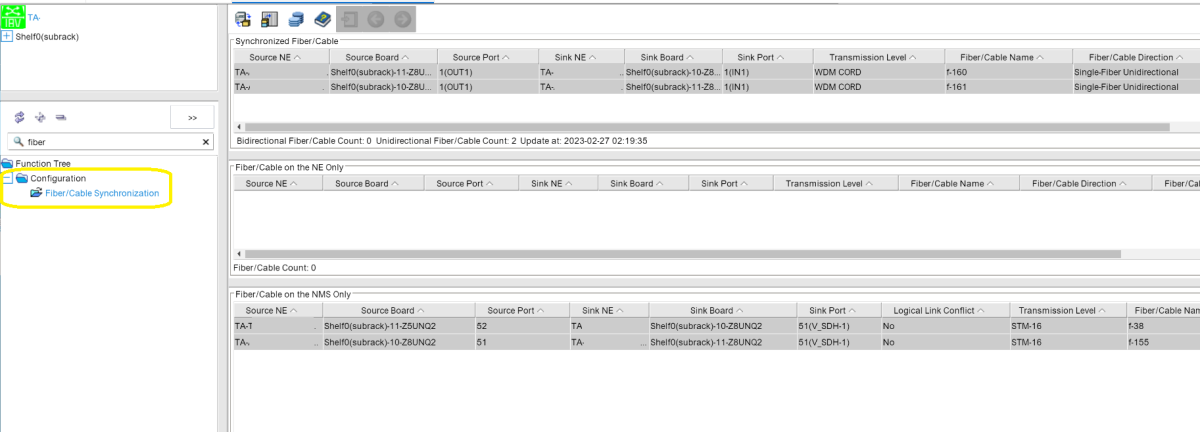
fiber synch


The Solution

The last way was checking the fiber using command line, I logged in the Main site NE and then applied the command:


:cfg-get-fibermgr: ( NE ID in Hexa ), Board No. , Destination NE ID or 0 if unknown , Destination Board ID or 0 if unknown.
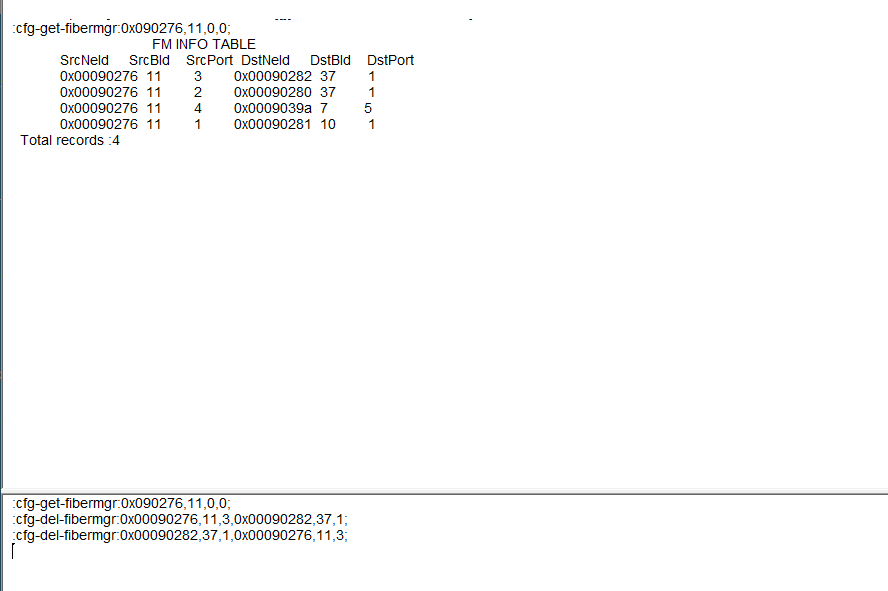
command of fiber2


The command returned with 4 fiber connections, 2 are the old undeleted fibers, those need to be deleted.

Using the command

:cfg-del-fibermgr:Source NE ID, Source board, port, destination NE ID, destination board, port;

Usually you need to apply the command twice with inversing the source and sink positions, the 3rd command will be as follows:


:cfg-del-fibermgr:Destination NE ID, destination board, port, Source NE ID, Source board, port;

According to the information we got from the first command, you will need to make an upload for the NES, that you made the command in.

Unauthenticated Transcivers on OSN9800U32-E

This article shares with you a case when the NE didn’t get the received optical power of the 1G SFP after being installed in Huawei OSN9800 U32, and how we find out the reason.


Description 

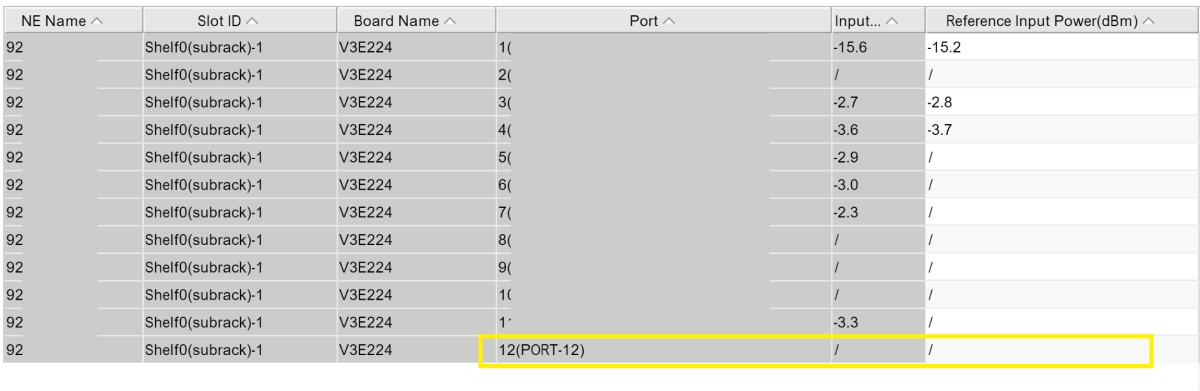
- As we come to make a connection in the level of 1G Ethernet between SDH OSN7500 EGS4 board and OSN980032U-E E-224 board, we installed the SFPs in the ports and connected the fiber after that, I come to check the Optical power TX and RX in both NEs but, I couldn’t find any reading for the power in the OSN9800U32E side, while it was a available in the OSN7500.


power values

Steps Of Checking 

1-After making sure that the ports are enabled, I started with alarms checking but there where no alarm, no R-LOF or R-LOS in both ends.

2-Asking the personnel in the field to exchange the SFPs in both NEs, So the SFP in OSN9800 installed in the SDH and the inverse, but the problem persisted in the OSN9800.

3-I come to open all the suppressed alarms in the OSN9800, After that an alarm appeared ( Module not Authenticated )

Unauthenticated

4- The alarm description indicates that This alarm is reported when the optical module is not authenticated by Huawei and by checking the board  Manufacturer information , I found that the SFP was bought of third party vendor and it wasnt standard, as it wasnt supporting the DDM function.


- DDM means “Digital diagnostics monitoring”. It can monitor the parameters of fiber modules like optical output power, optical input power, temperature, laser bias current, and transceiver supply voltage, in real time. So if there is any problems with your optical transceivers and can not work well. Then first you may get to see all these parameters of your transceivers at that time with DDM. Then you may find out the problem and solve it quickly, And so NCE can read the DDM information of the optical module.

- After replacing the SFP with Huawei Authorized one the power values appeared and the problem solved

Tuesday, June 27, 2023

How to add an OLT on eSight?

How to add Huawei GPON OLT MA5800 and MA5600T on eSight?


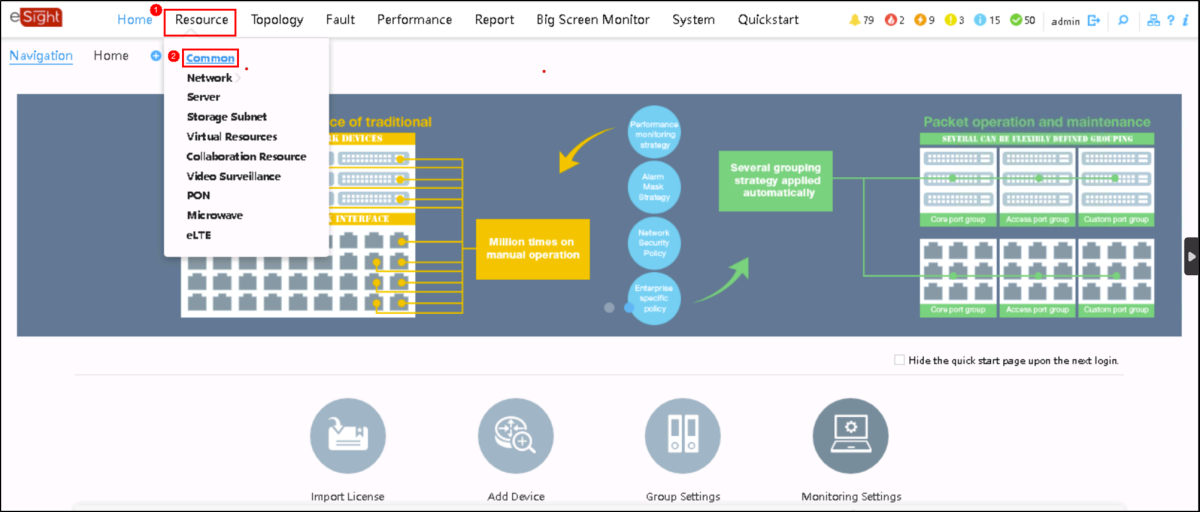
1. Log in to eSight, click the Resource tab, and click Common.


190241y390p3vkm9oez9ik.png


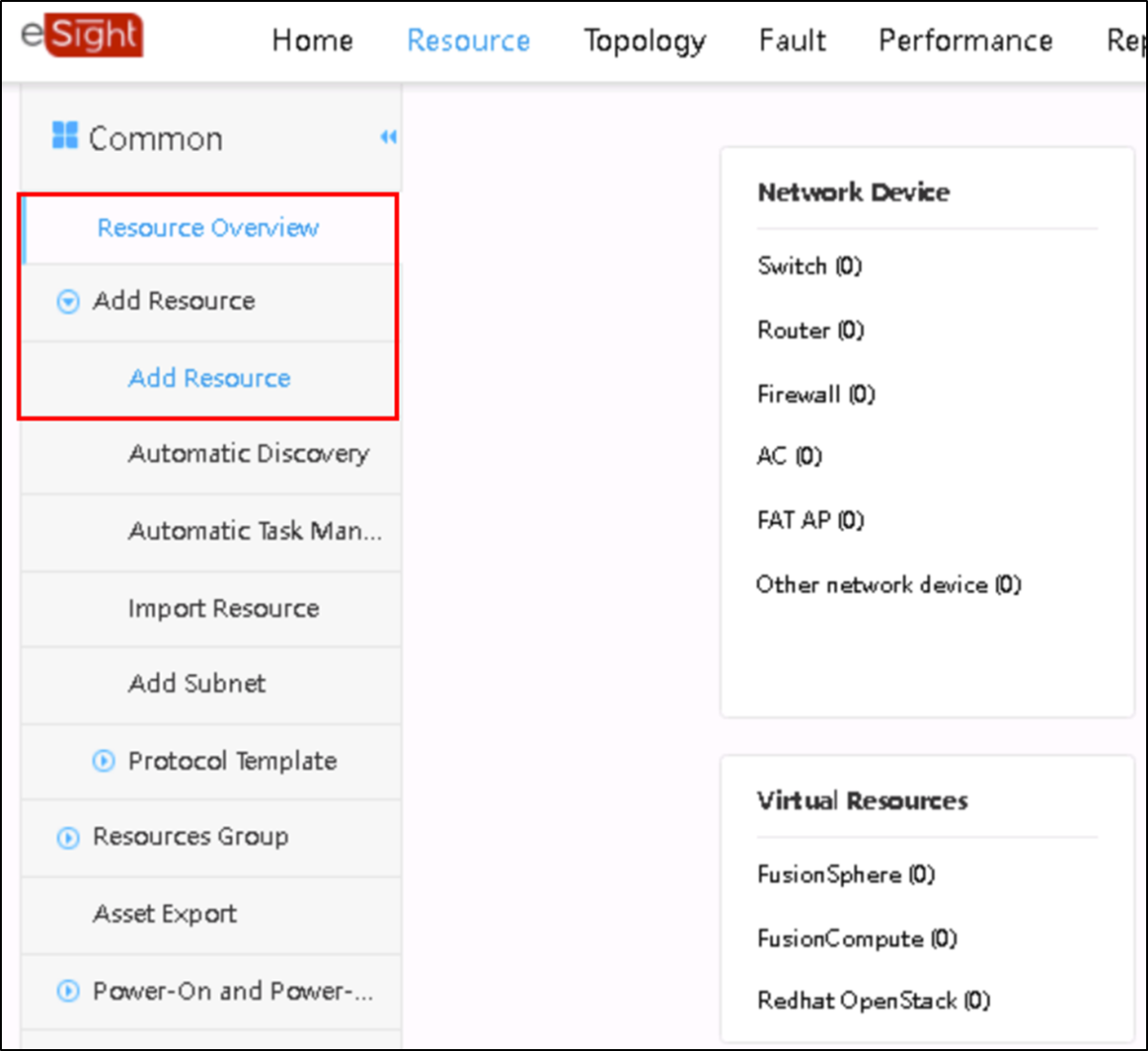
2. On the Resource tab page, choose Add Resource > Add Resource from the menu on the left.


 190246s2wrwf05x5ox24u2.png


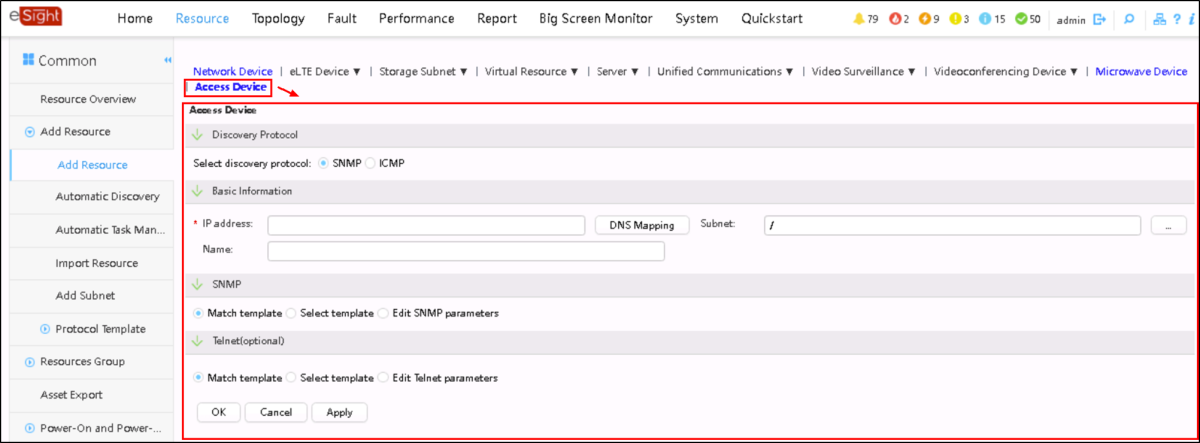
3. Click an Access Device on the page for Add Resource.

 190251y3ts01pxvqhrqxy0.png


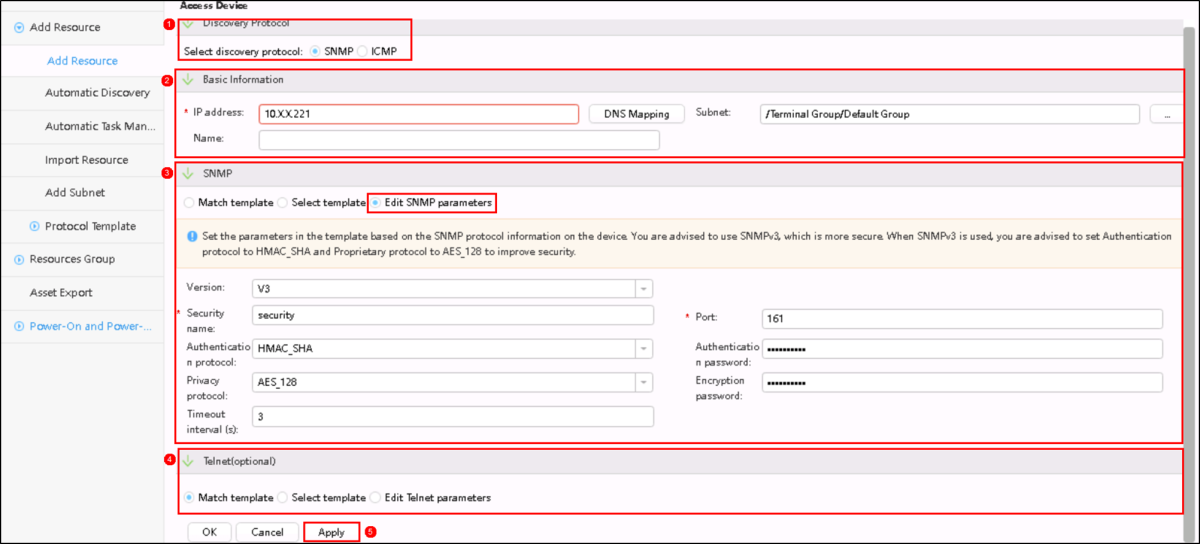
4. Set the following parameters based on the SNMP configuration on the OLT:


  • Discovery Protocol
  • Basic information
  • SNMP
  • Telnet(optional)

 190256uuxpj8na7jn08ojo.png


5. Click Apply and OK.


As shown in the preceding figure, the SNMP option is to edit SNMP parameters, which may be easier for a single device. If you need to add multiple devices, it may be easier to create an SNMP template.


How to Create an SNMP Template


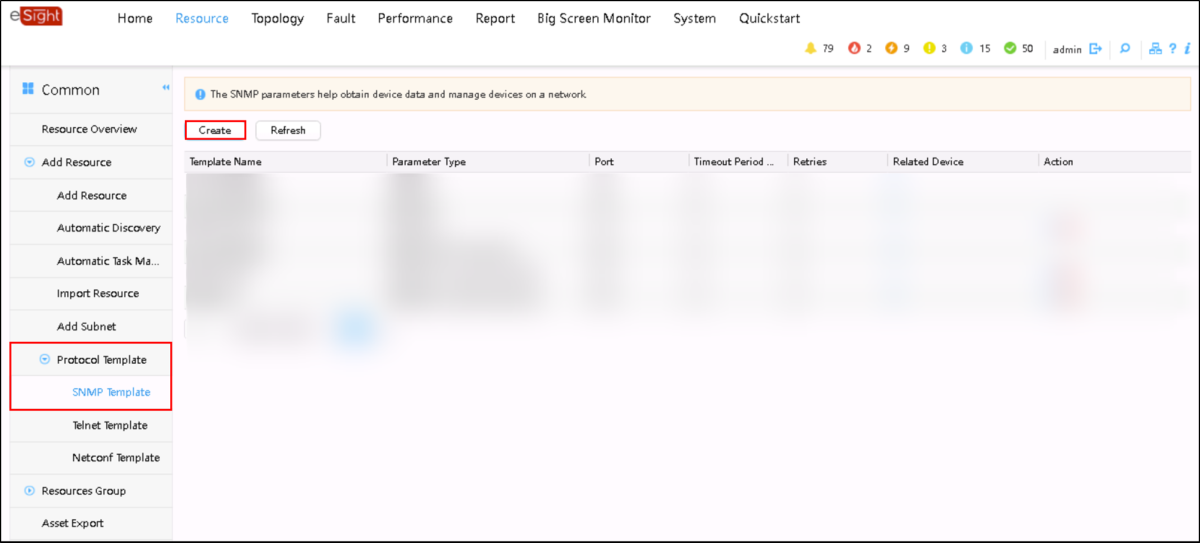
1. On the Resource tab page, choose Add Resource > Protocol Template > SNMP Template from the menu on the left, then click Create.

 190303t7u242bsapipz5w3.png


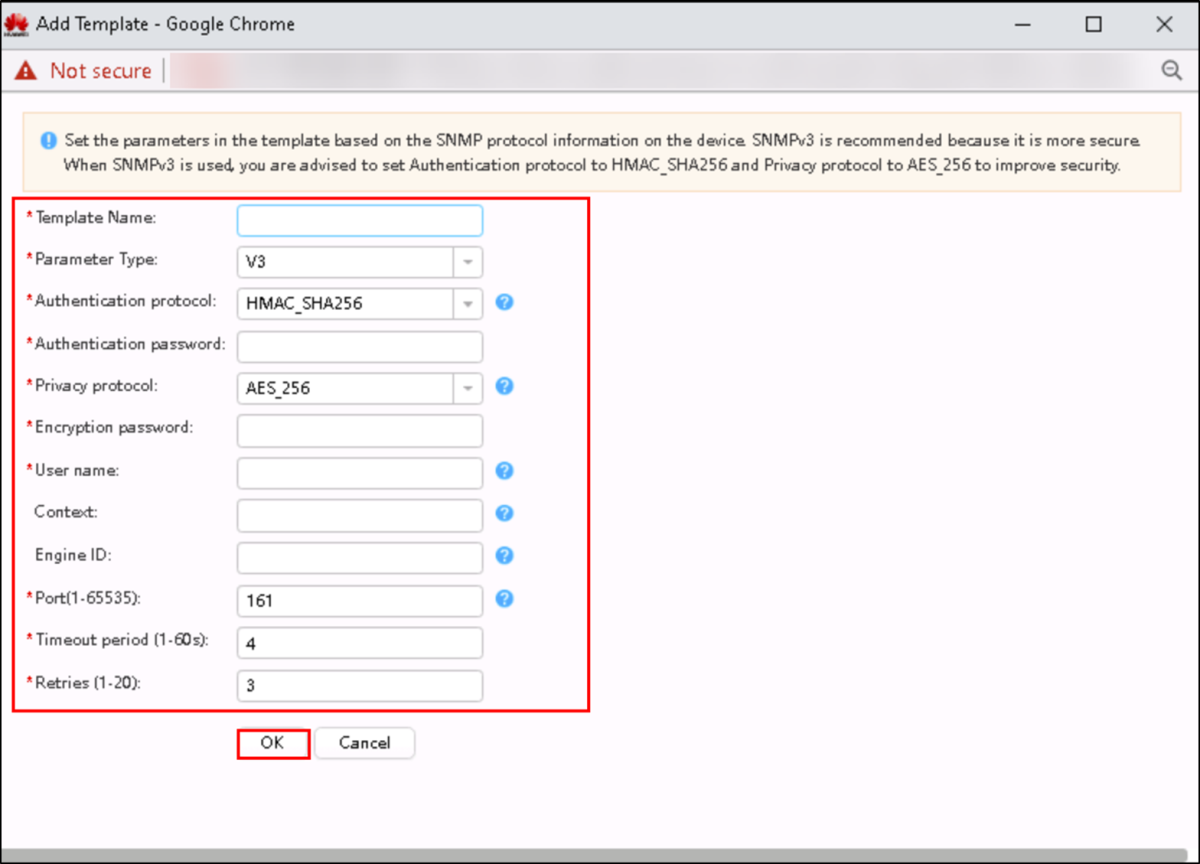
2. In the dialog box that is displayed, set SNMP template parameters.
(If a device needs to be added, the device needs to be matched with the template parameters.)

 190307ri8mdpe0eb1q87uc.png


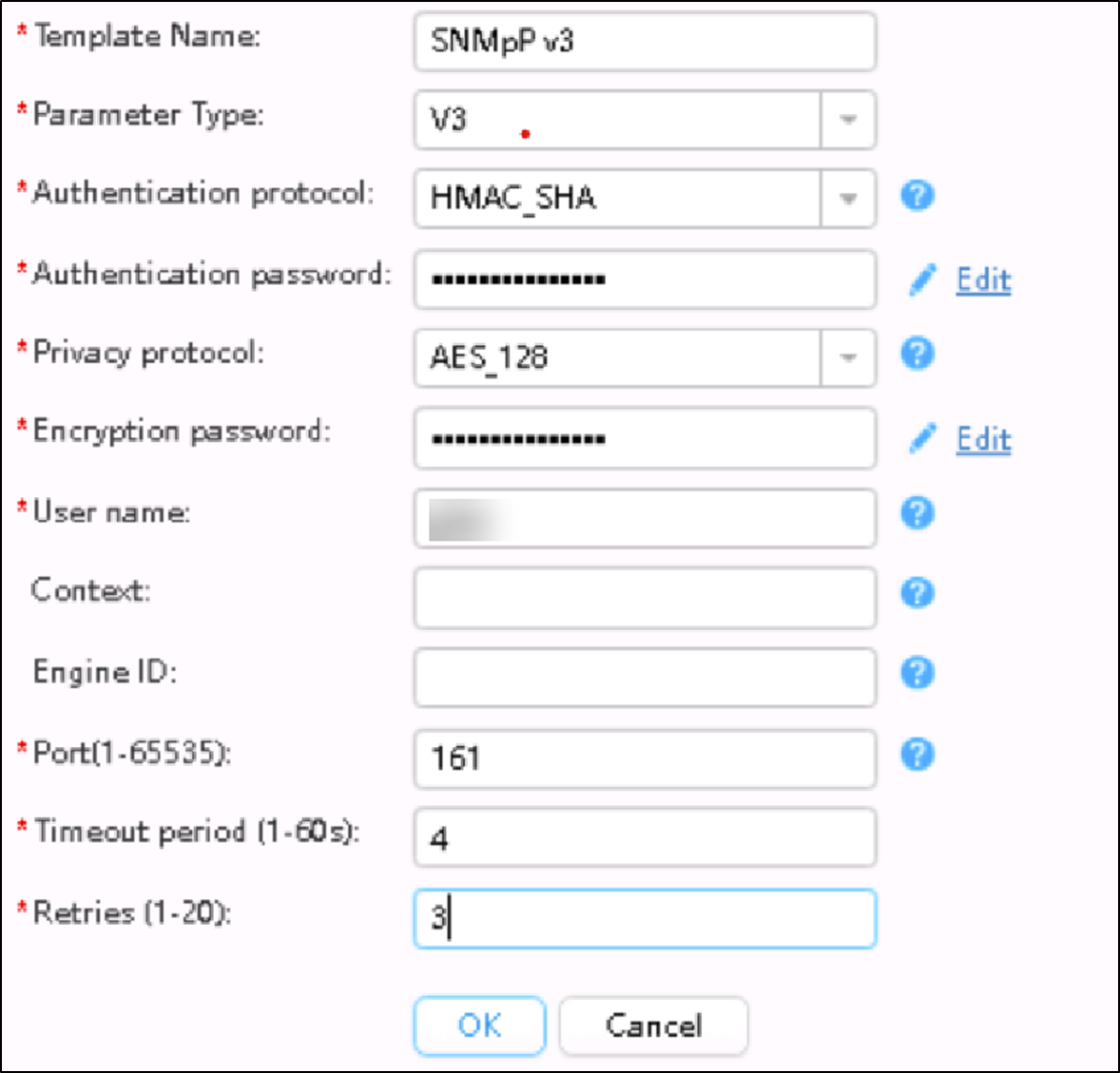
After filling in the specific parameters, click OK.


  193427y8pkngppgj7gp4yx.png


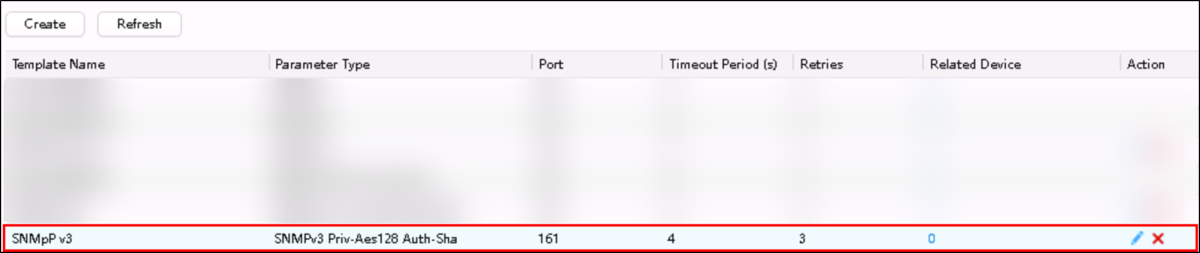
You can view the created template in the SNMP Template list.

 190340dzmpwppenjmupslj.png


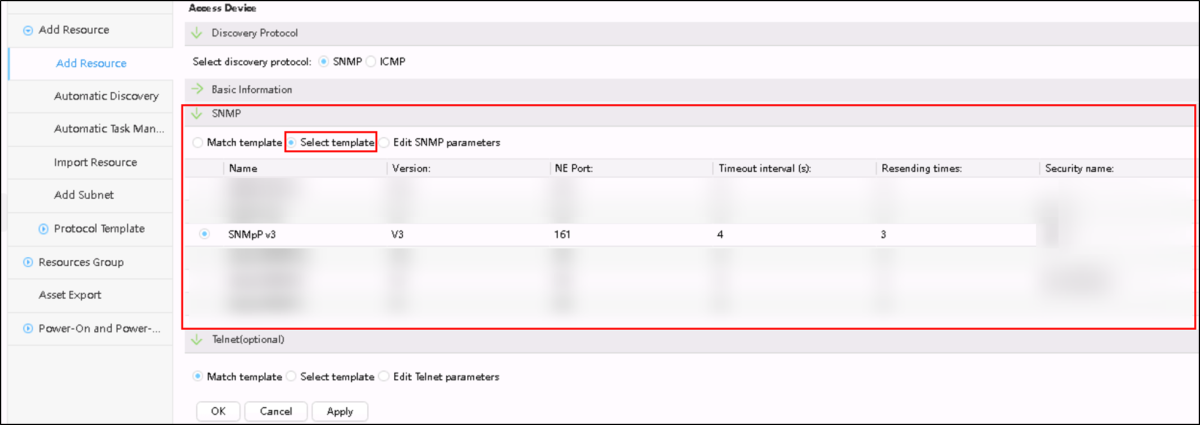
3. On the Add Resource tab page, set SNMP to Select template and click the created template.

 190345gdv6akbcp92cmcxm.png


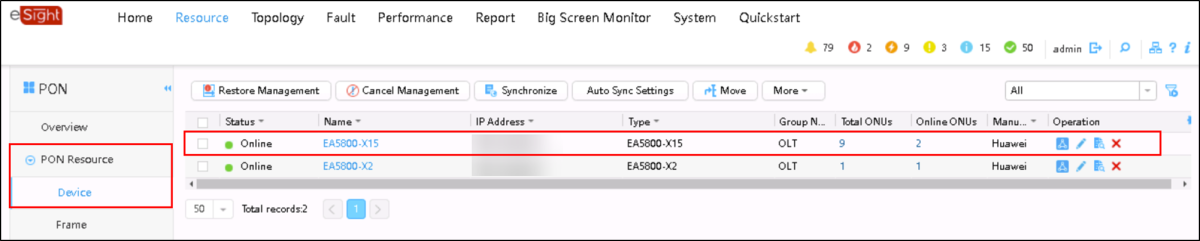
And finally, on the Device tab page of the PON Resource menu under Resource, you can view the added OLT.


190350metmt5u5658h75nu.png


Friday, June 16, 2023

How to configure the VOIP WAN of Huawei ONT on the OLT?

Huawei OLT supports the configuration of WAN ports for Huawei ONT through the CLI, including INTERNET WAN, VOIP WAN, IPTV WAN, and TR069 WAN.

Generally, one WAN port is configured with one type of service, and one WAN port may be configured with multiple types of services.

I would like to share with you how to configure the service type of Huawei ONT on the 

OLT as the WAN of the VOIP type.

The configuration procedure is as follows:
Note that only the process is demonstrated here. Related parameters need to be configured based on your network.

1. Turn on the OMCI configuration switch

MA5800-X17(config)#gpon ont home-gateway config-method omci

2. Configure the WAN

a. Creating an ONT SIP Profile

MA5800-X17(config)#ont-sipagent-profile modify profile-id 1 proxy-server 10.x.x.1 proxy-server-port 5060 outbound-server 20.x.x.1 outbound-server-port 5060 registration server-uri reg.test.com expiration 3600

b. Creating a WAN

Step 1, run the ont ipconfig command to determine the WAN port index and IP address obtaining mode. Here, the WAN port index is set to 2. (The default value is 0 if the WAN port index is not specified.)

MA5800-X17(config-if-gpon-0/4)#ont ipconfig 15 1 ip-index 2 dhcp vlan 4000

Step 2, create a SIP interface and bind it to the created SIP profile.

MA5800-X17(config-if-gpon-0/4)#if-sip add 15 1 1 ip-index 2 sipagent-profile profile-id 1

Step 3, add a voice user. After the three steps are complete, the ONT creates a WAN port and issues voice-related parameter settings.

MA5800-X17(config-if-gpon-0/4)#sippstnuser add 15 1 1 telno 88880001 username u88880001 password p88880001 mgid 1

After the two steps are complete, the ONT creates a WAN port.

3. Verify WAN Configuration

Log in to the ONT WebUI, you can view the created WAN configuration on the ONT WebUI, and check whether the configuration is consistent with that on the OLT.


4. Configuring Parameters of the Voice 

Create an ONT SIP Profile.


5. Query the ONT WAN port information on the OLT


Monday, May 15, 2023

Why Huawei OLT Cannot Be Added to NCE?

ISSUE DESCRIPTION 


The new project deployed an Huawei OLT MA5800, but it cannot be added to NCE.


1


PROCESS


1. Ping test from the OLT to the NCE server and ping test from the NCE OS to the OLT to confirm that the network is reachable.


2. Check the SNMP configuration from the OLT and NCE, confirm whether the SNMP parameters configuration in the OLT and NCE are the same.


//check snmpv2c read and write community from OLT:


MA5800-X7#display snmp-agent community read
MA5800-X7#display snmp-agent community write


//check snmpv2c configuration of the NCE SNMP template:


Log in to the O&M plane, click Network Management Application, from the Main Menu > System > NE Communication Parameters > Default Access Protocol Parameters, find the template which adds the OLT to NCE and to use it click Modify SNMP Template to check the snmpv2c configuration, or to reconfigure the community parameters.


3. From the NCE OS, capture the packets when adding the OLT to NCE. Check to find out whether the OLT side does not reply to the SNMP packets. Suspect there is a firewall between the OLT and NCE.


4. Check the OLT firewall settings to confirm that the OLT does not enable the firewall. The customer confirmed that ther is no firewall between the OLT and NCE.


//OLT check firewall if enabled:


MA5800-X7(config)#display sysman firewall


5. Check the device product documentation. Find that the new version (R20 or later version) OLT increased more SNMP-related commands. Configure the system server source SNMP any-interface and from NCE add the OLT successfully.


ROOT CAUSE


The sysman server source configuration is missing.


SOLUTION


From the OLT configure the below command:


sysman server source snmp any-interface
sysman server source snmp ipv6


SUGGESTIONS


1. It is suggested to configure the SNMP source to any interface; configuring the SNMP source to the management vlanif can also work.


2. If using IPV6 to manage the OLT, please reference to the above command enable ipv6 source.


3. If SSH cannot log in to the OLT, enable the similar SSH source command as per below:


sysman server source ssh any-interface
sysman server source ssh ipv6

Thursday, April 27, 2023

How to configure the INTERNET WAN of Huawei ONT on the OLT?

Huawei GPON OLT supports the configuration of WAN ports for Huawei ONT through the CLI, including INTERNET WAN, VOIP WAN, IPTV WAN, and TR069 WAN.

Generally, one WAN port is configured with one type of service, and one WAN port may be configured with multiple types of services.


I would like to share with you how to configure the service type of Huawei ONT on the OLT as the WAN of the Internet type.


The configuration procedure is as follows:
Note that only the process is demonstrated here. Related parameters need to be configured based on your network.

1. Turn on the OMCI configuration switch

MA5800-X17(config)#gpon ont home-gateway config-method omci


2. Configure the WAN

a. Creating a WAN

Step 1, run the ont ipconfig command to determine the WAN port index and IP address obtaining mode.
Set the WAN port index to 3 and specify a static IP address (using PPPoE or DHCP).


MA5800-X17(config-if-gpon-0/4)#ont ipconfig 15 1 ip-index 3 static ip-address 11.x.x.20 mask 255.255.255.0 vlan 200 priority 5 gateway 11.x.x.11


Step 2: Set this parameter to the INTERNET.


MA5800-X17(config-if-gpon-0/4)#ont internet-config 15 1 ip-index 3


After the two steps are complete, the WAN configuration is generated on the ONT.


b. Bind the LAN port to the WAN port

Step 1, create a policy-based routing profile and bind LAN port 1 and SSID 1 to WAN port index 3.

 MA5800-X17(config)#ont policy-route-profile profile-id 0

MA5800-X17(config-policy-route-profile-0)#policy-route 0 port-based eth 1 wlan 1 wan 3


Step 2, the ONT is bound to the policy-based routing profile.


MA5800-X17(config-if-gpon-0/4)#ont policy-route-config 15 1 profile-id 0


Step 3, set LAN port 1 to Layer 3 mode

In this way, LAN port 1 can be successfully bound to the WAN port. Otherwise, the binding does not take effect.


MA5800-X17(config-if-gpon-0/4)#ont port route 15 1 eth 1 enable


Step 4, the LAN-WAN binding on the ONT is queried.


If no policy route profile is bound, The entry that does not exist is returned.
If a WAN port is created on the ONT web page, the WAN port can be queried after being created.


MA5800-X17(config-if-gpon-0/1)#display ont routing-table policy-route 15 1
-----------------------------------------------------------------------------
Policy route type : SourcePhyPort
Physical port name : LAN1,SSID1   //If not configured in step 3, LAN1 will not be displayed here
Vender class ID : -
Ether type : -
Wan name : OLT_C_1_INTERNET_R_VID_200
-----------------------------------------------------------------------------
Total: 1


c. Configure the WAN type and NAT switch


Step 1, Create a WAN profile, set the WAN port type to route, and enable NAT.


MA5800-X17(config)#ont wan-profile profile-id 0
MA5800-X17(config-wan-profile-0)#connection-type route
MA5800-X17(config-wan-profile-0)#nat enable


Step 2, the ONT is bound to the WAN profile.


MA5800-X17(config-if-gpon-0/4)#ont wan-config 15 1 ip-index 3 profile-id 0

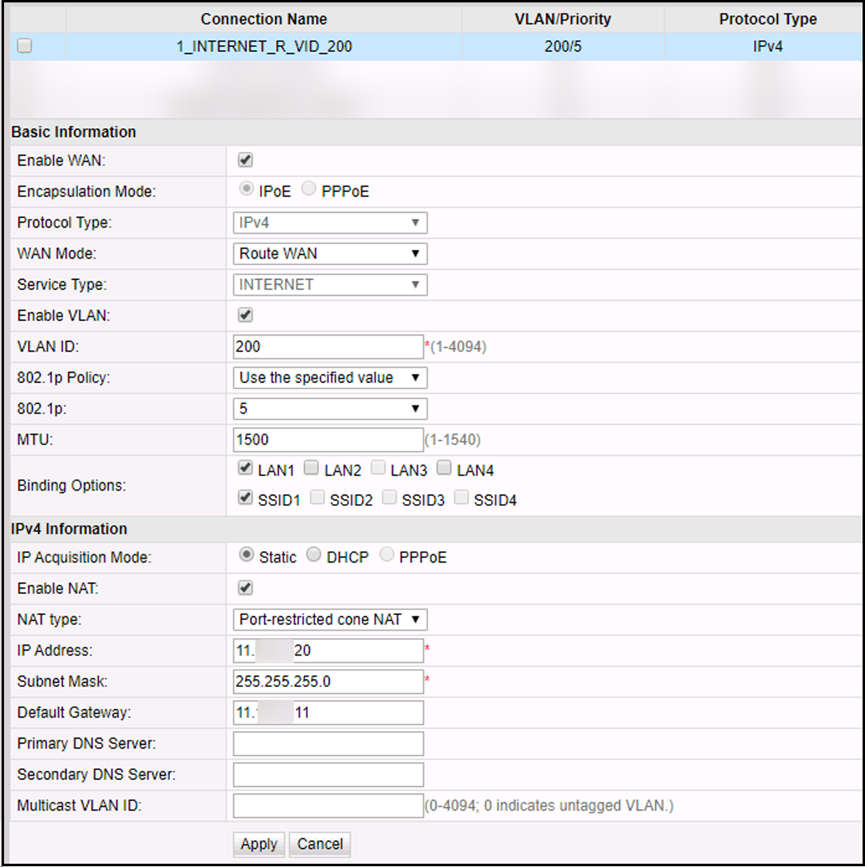
3. Verify WAN Configuration

Log in to the ONT WebUI, you can view the created WAN configuration on the ONT WebUI, and check whether the configuration is consistent with that on the OLT.


141126jxyxbqljkmycfj0b.png

Thursday, April 20, 2023

What are the differences between WDM and OTN?

This post introduces the differences between DWDM and OTN. 

What is WDM?

WDM: Wavelength Division Multiplexing
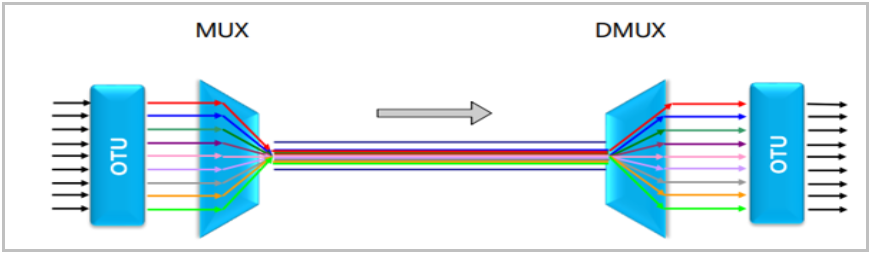
Strictly speaking, WDM refers to a technology that allows optical signals at multiple wavelengths to transmit over one optical fiber.
 

Typical WDM model:


WDM


Based on the number of wavelengths in use, the WDM system can be classified into dense wavelength division multiplexing(DWDM) and coarse wavelength division multiplexing(CWDM).

What is OTN?

OTN: Optical Transmission Network
Based on WDM, OTN integrates some advantages of SDH, such as abundant OAM overheads, flexible service grooming, and perfect protection modes.
OTN service grooming is classified into optical-layer grooming and electrical-layer grooming. 
Optical-layer grooming can be considered as WDM. And electrical-layer grooming can be understood as SDH.


OTN site model:
 

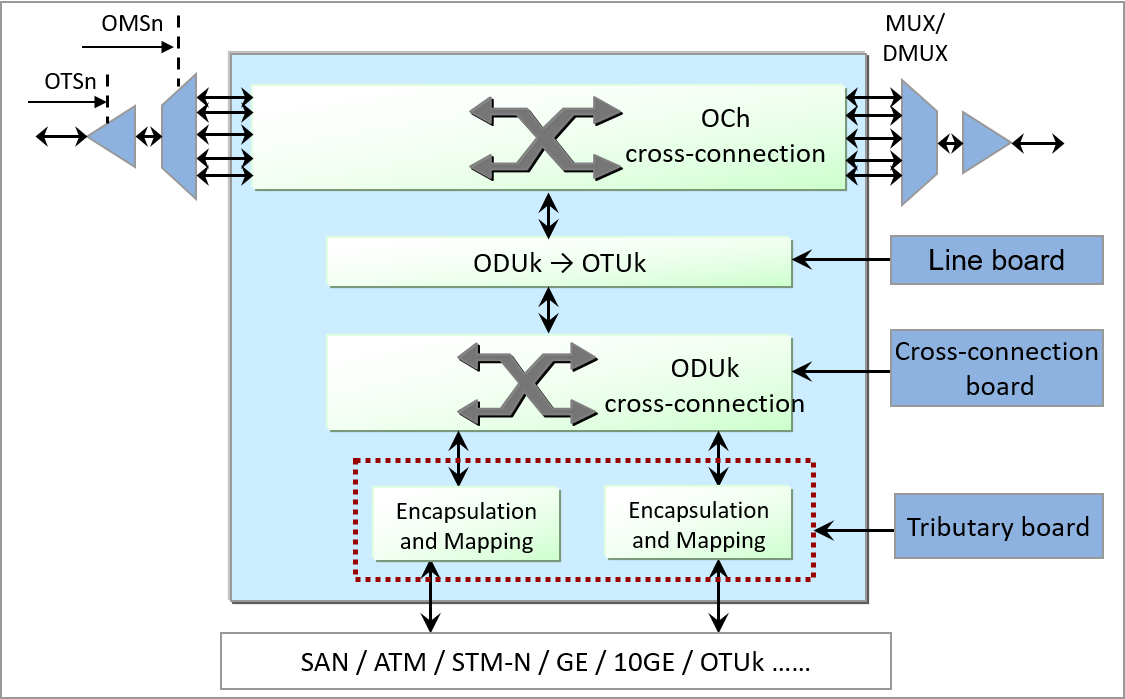
OTN


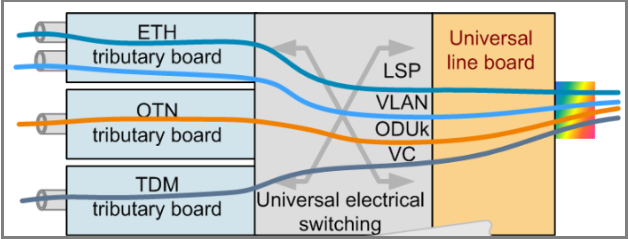
The electrical-layer hardware architecture of OTN equipment is the same as that of SDH equipment.: tributary board + cross-connect board + line board.


OTN


Differences between WDM and OTN

1. The WDM technology applies only to the optical layer and does not apply to the electrical layer. OTN includes both the optical layer and the electrical layer.


2. On a traditional WDM network, one wavelength can transmit only one service. One wavelength on an OTN network can transmit multiple services at the same time.


3. Traditional WDM sites have only OTU boards (wavelength conversion units). In OTN, the OTU board is divided into two parts: tributary board and line board, and electrical cross-connect boards are added. OTU boards can also be directly installed on OTN products.


4. The powerful overhead and monitoring capabilities supported by OTN improve network self-healing protection and reliability. The WDM technology can provide only optical-layer protection. The OTN technology can provide both optical-layer protection and electrical-layer protection.


5. OTN supports more types of services and higher board integration.


6. Through electrical-layer cross-connection grooming, OTN can flexibly schedule and allocate channel resources, improving bandwidth resource utilization.


7. The WDM technology has no corresponding frame structure, whereas the OTN technology has a complete frame structure.


8. OTN sites use a large number of electrical-layer boards. Therefore, network construction costs are high. A WDM site does not have a large number of electrical-layer boards. Therefore, the network construction cost is low.


9. The application scenarios are different. Traditional WDM is mainly applied to the access layer at the edge of the network as an OTM site. An OTN network can provide cross-connections for large-granularity services. The OTN network can be used at the aggregation layer and core layer as OADM sites. 


Related Huawei WDM and OTN devices OSN8800 T32 OSN9800 OSN1800 and so on.